In an era defined by seamless cloud integration, the modern smartphone user has grown accustomed to a life of automated synchronization. Whether you are drafting an email on a tablet, editing a spreadsheet on a laptop, or reviewing a document on your mobile device, the expectation is that your data follows you. For the most part, Google’s ecosystem has mastered this "it just works" philosophy. However, a glaring, archaic gap has persisted in the Android experience: the local "Downloads" folder.
For years, documents saved to an Android device—be it a PDF, a Word file, or a project report—existed in a digital silo. If that device was lost, damaged, or upgraded, those files remained tethered to the physical hardware, often lost to time or requiring tedious manual transfer. Today, that narrative changes. Google has quietly rolled out a native, system-level backup feature that finally bridges this gap, allowing Android users to ensure their locally stored documents are as mobile as they are.
The Evolution of Android Data Sovereignty
To understand why this update is a significant milestone, one must look back at the trajectory of Android’s backup ecosystem. In the early 2010s, the concept of a "seamless transition" between phones was largely a fantasy. Users relied on a fragmented landscape of third-party recovery tools, custom ROMs, and manual ADB (Android Debug Bridge) commands to preserve their digital lives. Restoring a phone after a factory reset was a multi-day ordeal involving hours of manual reconfiguration.
Over the last decade, Google has systematically addressed these pain points. The introduction of Google One, enhanced Drive integration, and improved app-data backups transformed the user experience. By 2026, most primary data—contacts, messages, calendar events, and photos—migrated automatically. Yet, the "Downloads" folder remained an outlier. It functioned like a physical desk drawer in a digital world: if you didn’t manually move the contents, they stayed put. With this latest update, Google is effectively closing the final major loophole in its personal data protection strategy.
How to Activate the New Backup Feature
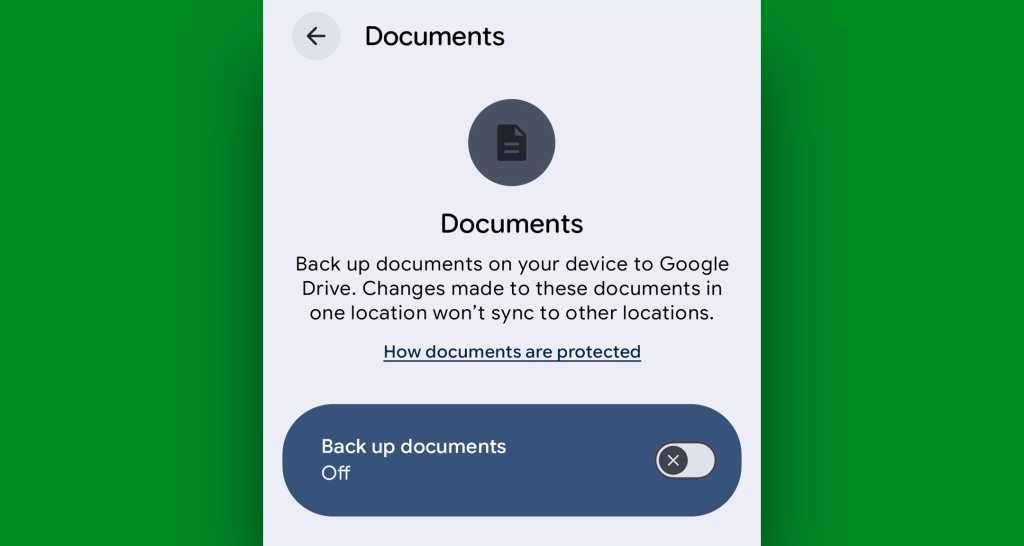
Despite the utility of this feature, it is not enabled by default. To maintain user control over cloud storage quotas and data privacy, Google has placed this function behind a manual opt-in switch. The process is straightforward, taking roughly ten seconds for the average user to complete.

Step-by-Step Configuration:
- Access System Settings: Navigate to your device’s main Settings menu.
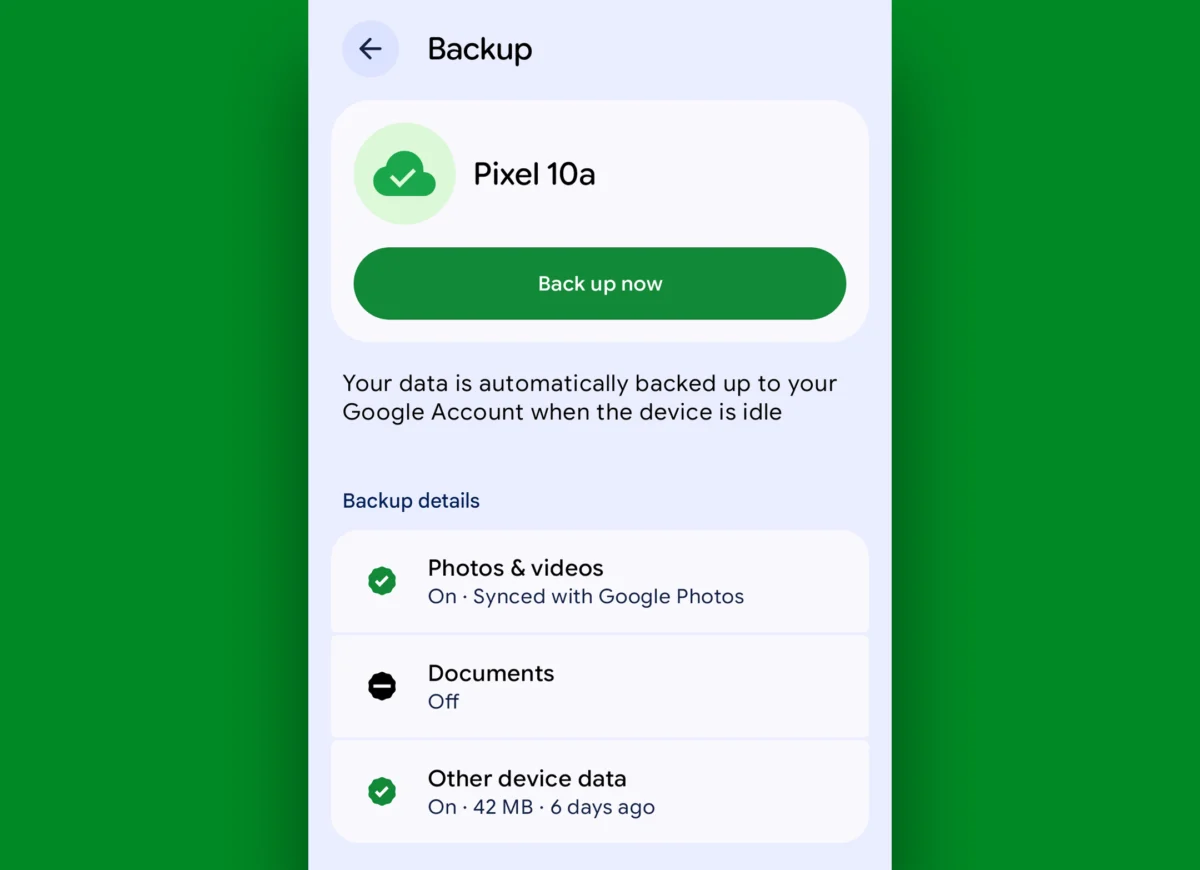
- Locate Backup Controls: Look for a menu item labeled "Accounts and backup," "Backup," or "Google Backup." The specific nomenclature varies slightly depending on your manufacturer (Samsung, Pixel, Motorola, etc.).
- Navigate to Data Management: Within the Google Backup screen, you may need to tap on "Other device data" or a similar submenu to see the full list of selectable backup categories.
- The "Documents" Toggle: Once in the list, you will see a newly added entry labeled "Documents." Toggle this switch to the "On" position.
Note: If the option is not visible on your device, ensure you are running Android 9 (Pie) or higher. As this is a staggered server-side rollout, it may take several days for the update to propagate to all devices globally.
The Implications for Data Management
The introduction of native document backup is not merely a convenience feature; it changes the calculus of mobile productivity. By offloading local documents to Google Drive, users are essentially creating a redundant, cloud-based safety net.
Security and Encryption
All documents backed up through this new system are encrypted, maintaining the security standards consistent with Google Drive’s broader architecture. Once a file is synced, it becomes accessible from any device logged into your Google account, effectively turning your local storage into a unified cloud repository.
Storage Considerations
While this feature offers peace of mind, it is important to remember that these files count against your total Google storage allocation. Because documents—particularly PDFs and high-resolution reports—can accumulate quickly, users should periodically monitor their storage quota via the Google One storage hub. If you find your cloud space approaching its limit, Google provides tools to audit and delete unnecessary files, ensuring that your automated backups continue to function without interruption.
Contextualizing the Update: Beyond the Hype
In recent months, the tech discourse surrounding Google has been dominated by the rapid, and sometimes contentious, integration of Gemini AI. Critics have frequently pointed to these AI implementations as being either redundant or, in some cases, counterproductive. Against that backdrop, this document backup update represents a "back-to-basics" approach that many power users have been requesting for years.
It is a rare instance of a functional, high-utility update that prioritizes the core operating system experience over flashy, AI-driven interface changes. By focusing on the fundamental reliability of the Android platform, Google is addressing the "missing link" that has long hindered the OS from being a truly frictionless environment for professional and personal productivity.
Managing Other Data: A Holistic Approach
While this update covers the critical domain of documents, it is worth noting that it does not replace the need for comprehensive file management. For users looking to maintain a truly synchronized digital life, a multi-layered approach is still recommended:
- Photos and Media: Utilize Google Photos’ "On this device" backup feature. By navigating to the "Collections" tab in the Google Photos app, users can select specific local folders (like WhatsApp images or saved memes) to ensure they are backed up to the cloud.
- Third-Party Synchronization: For specialized file types or non-standard storage structures, third-party synchronization tools remain the gold standard for power users. These apps allow for granular control, such as syncing files to non-Google cloud services (e.g., Dropbox, OneDrive, or local NAS servers).
- Routine Audits: Regardless of the backup method used, periodic audits of your digital storage are essential. Clearing out old downloads and redundant files is the best way to ensure that your backups remain efficient and cost-effective.
The Road Ahead
As Android continues to evolve, the distinction between "local" and "cloud" storage is becoming increasingly blurred. This update is a significant step toward a future where the device in your hand is merely a window into your data, rather than a permanent vessel for it.
For the average user, the takeaway is clear: Take the time to flip the switch. In a world where data loss can be catastrophic—whether due to a misplaced phone or a hardware failure—the ability to automate the protection of your most important files is invaluable. This 10-second task removes a significant point of failure from your daily routine, allowing you to focus on your work rather than worrying about where that work is actually stored.
Google’s latest update is a reminder that even in the age of generative AI and complex machine learning, the most impactful improvements are often the ones that solve the most persistent, mundane problems. By finally treating the "Downloads" folder with the same level of priority as contacts and messages, Android has become a more mature, reliable, and user-centric platform than ever before.