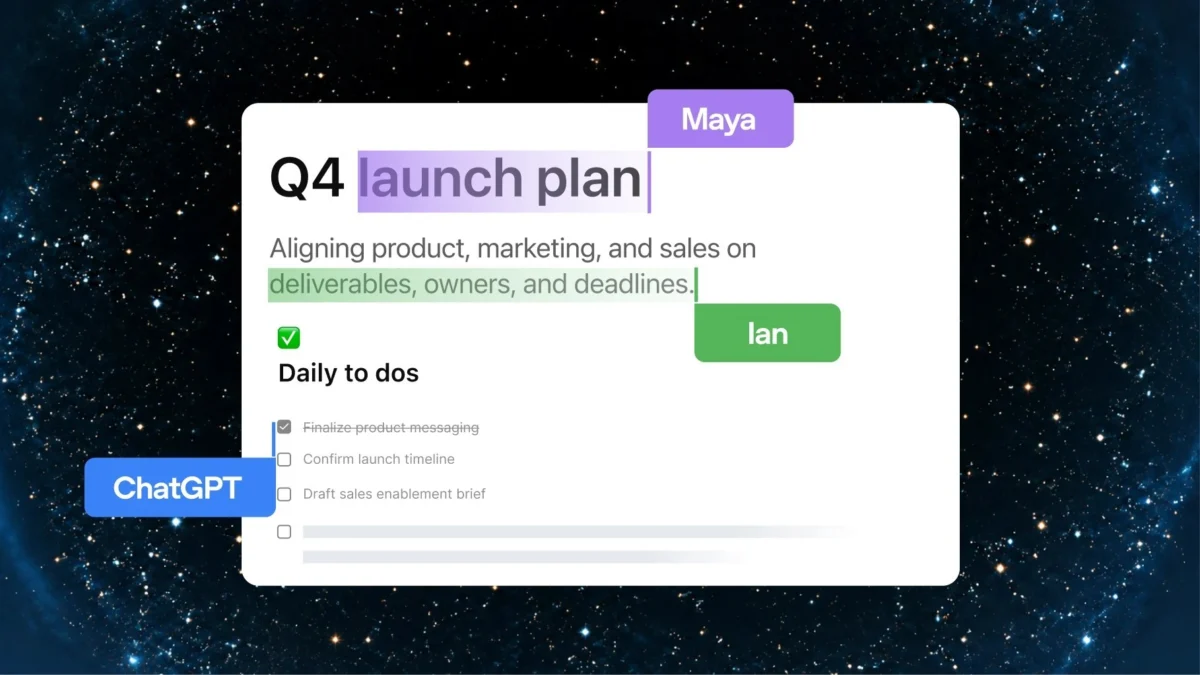
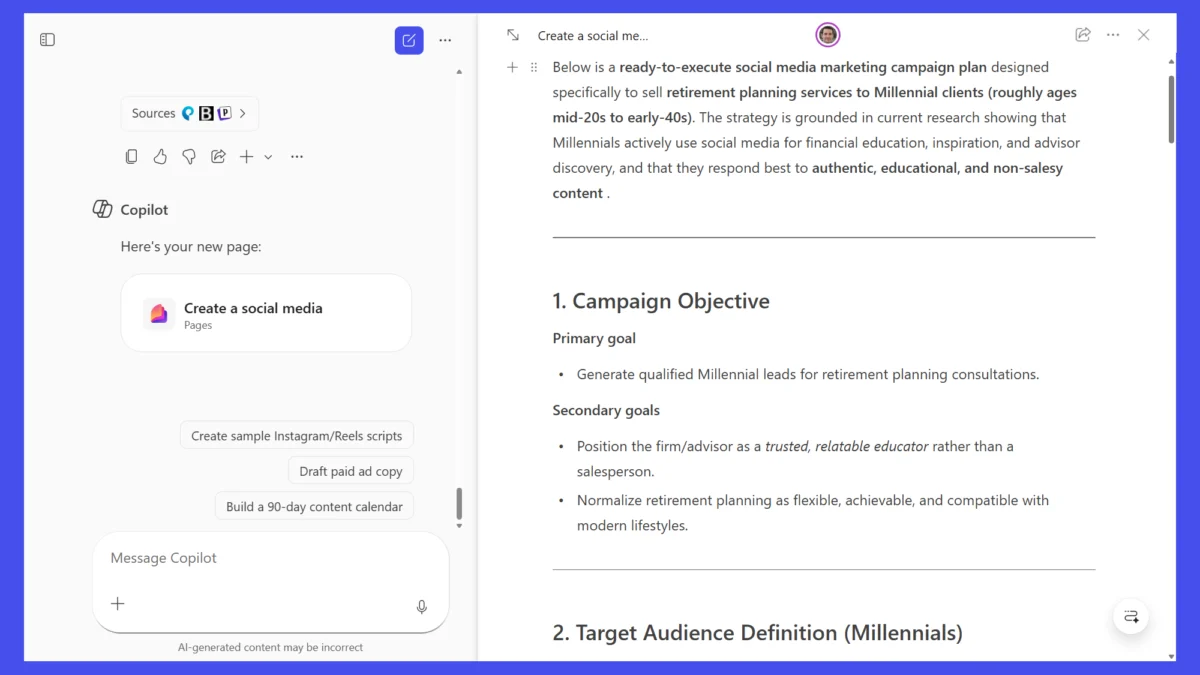
In the rapidly evolving landscape of generative AI, the bottleneck for most enterprise users is no longer the generation of content, but its integration into a cohesive, actionable workflow. Microsoft has addressed this with "Copilot Pages," a sophisticated, split-screen interface within the Microsoft 365 Copilot app designed to bridge the gap between AI-driven ideation and structured document creation. By offering a persistent canvas alongside a real-time chat interface, Copilot Pages transforms the AI from a simple chatbot into a collaborative partner.
The Core Concept: Bridging Ideation and Execution
For months, the primary interaction model for AI assistants has been transactional: you prompt, the AI replies, and you copy-paste the output into a secondary application. This fragmented process often disrupts the creative flow. Copilot Pages eliminates this friction.

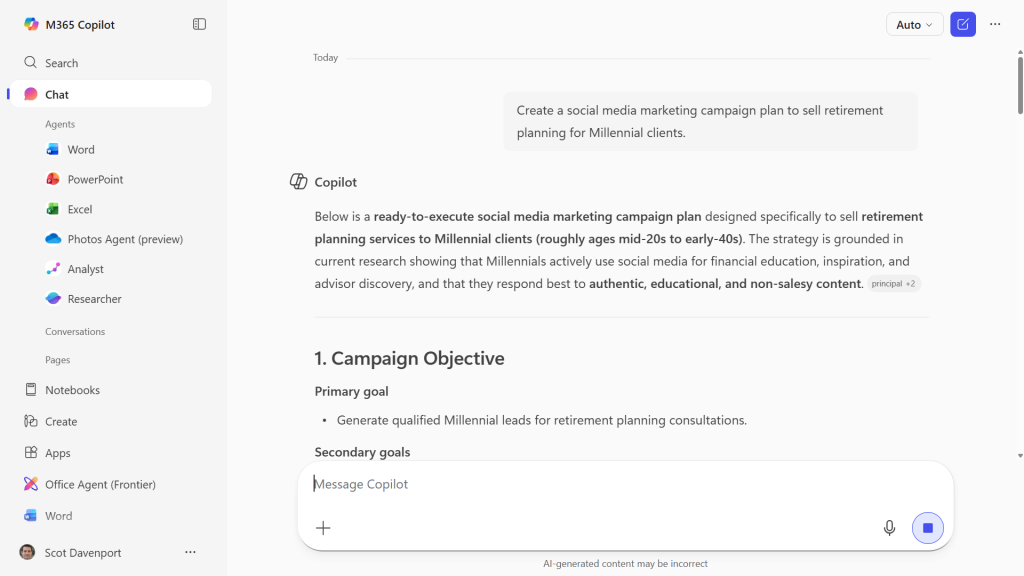
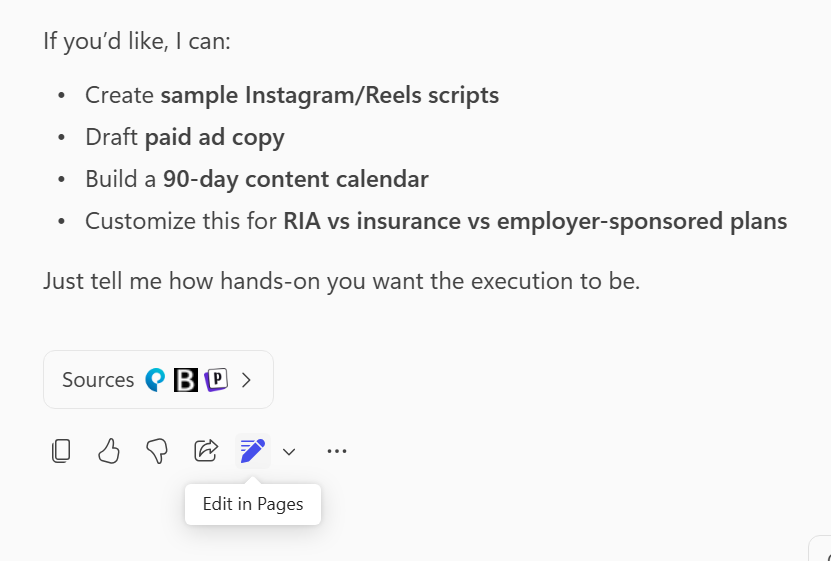
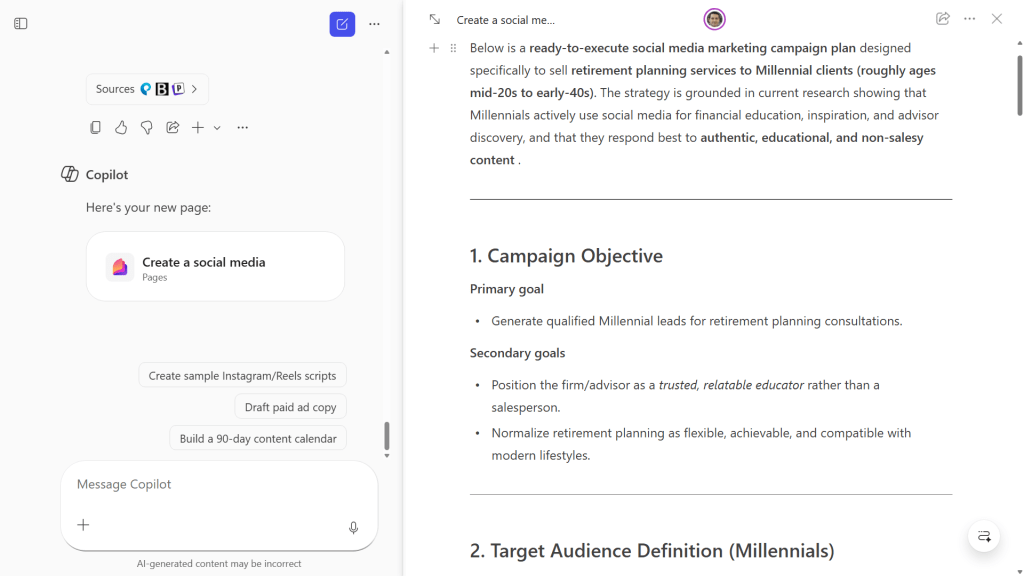
When you generate a project outline, a set of marketing action items, or a technical brief in the M365 Copilot app, you are no longer limited to the chat history. By clicking the "Edit in Pages" icon, the AI’s output is promoted to a "Page"—a persistent, editable document that occupies the right-hand side of your screen. This creates a dual-pane environment: your interactive chat window remains on the left, allowing for continuous refinement, while your document evolves in real-time on the right.
This feature is currently available to users with a paid Microsoft 365 plan. Notably, Microsoft has decoupled this specific functionality from the premium Copilot add-on, meaning that many enterprise users with standard M365 licenses can leverage the power of Pages, significantly lowering the barrier to entry for AI-assisted collaboration.
Chronology of Development and Deployment
The rollout of Copilot Pages marks a significant pivot in Microsoft’s "AI-first" strategy for the workplace. Initially, Copilot was positioned as an overlay for existing apps like Word and Excel. However, user feedback indicated that the "blank page" problem—where users struggle to initiate a project—required a more flexible environment.
- Initial Integration: Microsoft 365 Copilot debuted as a sidebar-based assistant, helping users summarize emails and draft documents within established files.
- The Shift to Multi-Modal Interaction: Recognizing that users needed a "scratchpad" for AI brainstorming, the development team transitioned toward a more canvas-centric model.
- Introduction of Pages: The feature was launched to provide a dedicated, persistent environment where AI-generated content could live outside of a chronological chat thread.
- Ongoing Expansion: Microsoft has continued to integrate Pages into the broader M365 ecosystem, allowing these documents to be shared as Loop components in Teams, Outlook, and OneNote.
Structural Anatomy: How to Build and Manage Pages
Creating a page is a seamless process. Users navigate to microsoft365.com, where the Copilot interface is prominent. After entering a prompt, the user simply scans the output; if the response warrants further development, clicking the "Edit in Pages" icon—represented by a pencil—instantly bifurcates the browser screen.
Creating and Naming Your Canvas
Once the screen splits, the first order of business is establishing a title. The system intelligently pulls the initial prompt to serve as a placeholder title, but users are encouraged to rename these pages to ensure they remain organized within the Library section.
Advanced Editing and Component Manipulation
Copilot Pages treats content as a collection of modular blocks. Each paragraph, heading, or list is a discrete object.
- The Six-Dot Handle: Hovering over any element reveals a six-dot icon. This is your primary control for moving, copying, or deleting segments.
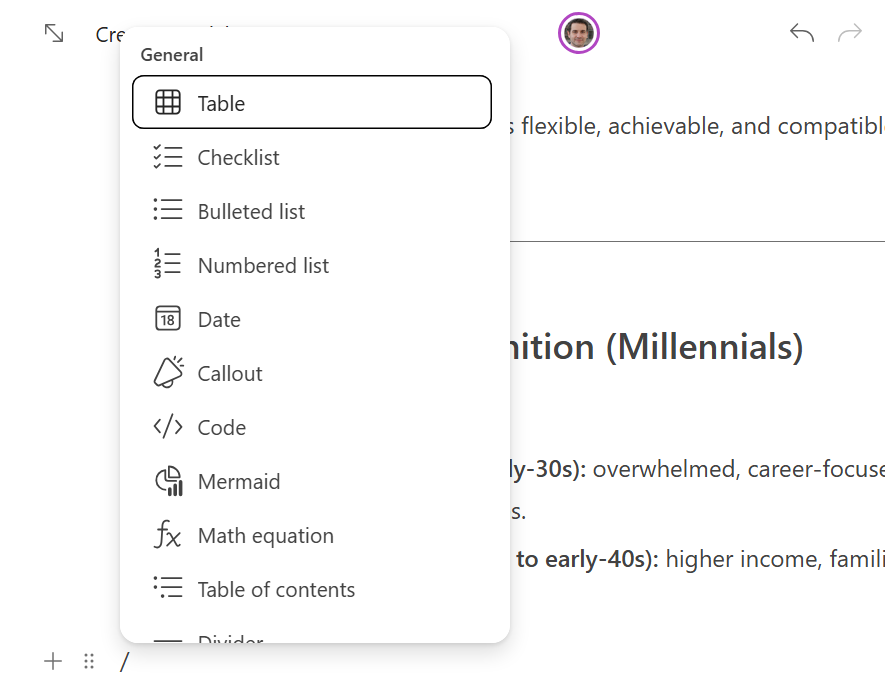
- The Slash (/) Menu: Typing a forward slash provides a powerful, contextual menu. Here, users can insert tables, checklists, callouts, or tables of contents, effectively turning a basic AI draft into a structured business document.
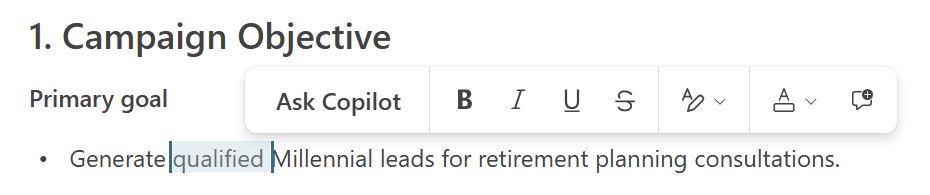
- Contextual Formatting: Highlighting any text triggers a formatting toolbar, allowing for stylistic changes without needing to export to a full-featured word processor immediately.
Expanding and Refining: The Iterative Loop
The power of Copilot Pages lies in its "Ask Copilot" functionality, which functions as an in-line editor. Rather than re-prompting the AI in the chat window, users can highlight specific sections within the page and click "Ask Copilot." This allows for surgical revisions: "make this section more professional," "expand this into an introduction," or "summarize these bullet points."
For more global changes, the "Copilot Shortcuts" (located at the bottom-right of the canvas) allow users to apply sweeping transformations. With a single click, you can instruct the AI to reformat an entire document into an email draft, a blog post, or a concise summary.
Collaborative Dynamics: Beyond the Individual User
One of the most profound implications of Copilot Pages is its capability for real-time, multi-user collaboration. By clicking the "Share" icon, users can generate a link for co-workers or external clients.
Permissions and Security
Microsoft provides granular control over these shared pages. When generating a link, users can define:

- Access Levels: Whether the recipient can view the page or actively edit it.
- Targeting: Restricting access to specific individuals or the entire organization.
- Governance: The ability to set expiration dates for links or apply password protection, ensuring that sensitive AI-generated drafts do not circulate beyond their intended lifecycle.
Integrated Team Feedback
Once invited, collaborators can interact with the document in ways familiar to users of collaborative software. By using the "@" symbol, you can tag colleagues in specific components of the document, triggering notifications. Furthermore, the comment system allows for threaded discussions directly adjacent to the AI-generated content, keeping the conversation contextually relevant.
Supporting Data and Technical Requirements
While the "Basic" Copilot experience (available for free users without M365 accounts) offers limited functionality, the "M365 Copilot" version is a professional-grade tool. It operates within the secure boundary of the Microsoft 365 tenant, ensuring that data used to refine these pages remains within the organization’s compliance framework.
- Export Capabilities: Pages are not meant to be dead-ends. Users can export their work to Microsoft Word or PDF formats. Exporting to Word automatically opens the content in the web-based app, preserving the structure created in the Page, while PDF exports provide a static, shareable file.
- Library Management: All created pages are archived in the "Library" section of the M365 Copilot app. This centralized hub allows for easy retrieval, search, and management of historical brainstorming sessions.
Official Perspective and Strategic Implications
Microsoft’s design philosophy for Copilot Pages centers on the concept of "fluid work." According to internal documentation, the company views the traditional document-centric model—where files are siloed—as an obstacle to AI adoption. By moving toward a component-based approach, Microsoft is essentially redefining what a "document" is in the AI era.
Implications for the Future of Work
- Reduced Context Switching: By keeping the chat and the document on one screen, employees spend less time toggling between applications, which has been shown to increase deep-work capacity.
- Democratized Expertise: Because Pages allows for easy sharing and commenting, institutional knowledge that was once trapped in a single user’s chat history can now be easily circulated and improved upon by a team.
- AI as a Persistent Partner: The shift from a "chatbot" to a "canvas" implies that Copilot is no longer just a tool for answering questions; it is now a platform for building, refining, and finalizing high-stakes business communication.
Conclusion
The introduction of Copilot Pages is a testament to the maturation of generative AI in the corporate sector. By focusing on the user experience—specifically the need for a persistent, collaborative, and modular workspace—Microsoft has moved beyond the "wow factor" of AI generation and into the practicalities of day-to-day productivity. Whether you are drafting a complex marketing strategy or simply summarizing meeting minutes, Copilot Pages provides the structure needed to turn AI suggestions into professional-grade assets, all within the safety and familiarity of the Microsoft 365 environment.