

In the sprawling digital ecosystem of modern business, information fragmentation is the silent killer of productivity. As professionals rely increasingly on Google Workspace to manage their daily operations, the volume of data—scattered across Google Drive, Gmail, Calendar, Chat, and Keep—has become a double-edged sword. While the information is accessible, finding the right needle in the haystack of thousands of files has historically required manual effort or broad, imprecise AI queries.
Enter Google Drive Projects, a sophisticated, often overlooked feature that transforms how users interact with artificial intelligence. By allowing users to bundle specific documents, emails, and calendar events into a singular "Project," Google has created a sandbox that enables Gemini to operate with unprecedented precision and speed.

The Core Concept: Contextual Intelligence
The primary challenge with general-purpose AI assistants is their tendency to "boil the ocean." When you ask a broad question about your business budget, a standard AI tool might scan your entire cloud storage, resulting in slow response times and a higher likelihood of hallucinations or irrelevant data ingestion.
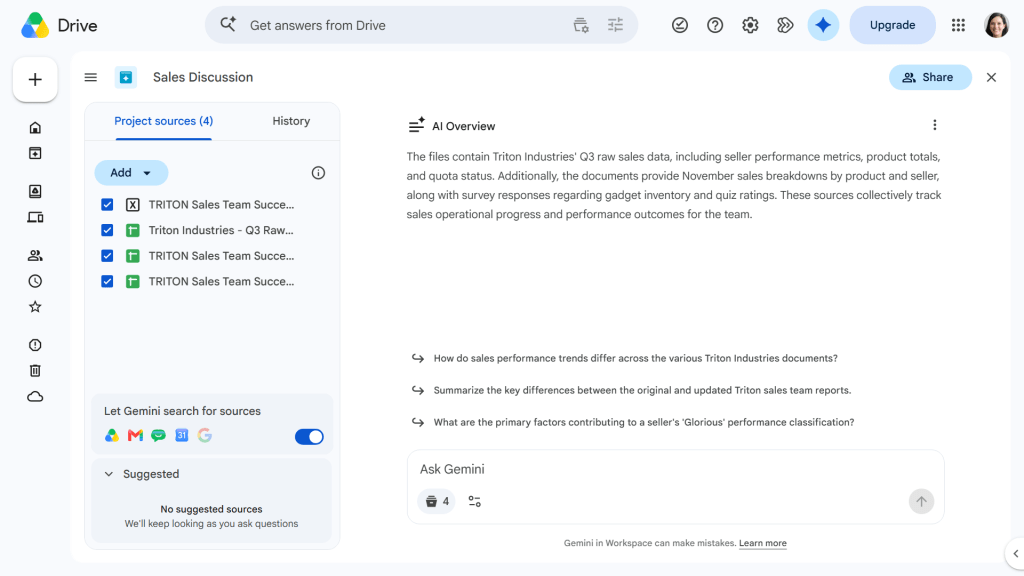
Drive Projects flips this model on its head. By creating a dedicated container for a specific initiative—such as a "Q4 Marketing Strategy" or "Annual Audit"—you effectively narrow the AI’s aperture. When you chat with Gemini inside a Project, it is strictly restricted to the "sources" you have explicitly permitted. This ensures that the AI’s output is rooted entirely in the context of the files and communications relevant to that specific task, leading to sharper, faster, and more actionable insights.
Chronology: The Evolution of Workspace AI
The path to Drive Projects reflects the rapid maturation of generative AI in enterprise settings:
- Phase 1: The Integration Era. Google first introduced the Gemini sidebar, allowing users to query individual files one at a time. While useful, it lacked the ability to synthesize data across multiple formats simultaneously.
- Phase 2: The Cross-Platform Expansion. Google expanded Gemini’s reach to index Gmail, Calendar, and Keep. This was a significant leap, but it also increased the "noise" in the data, as the AI struggled to prioritize relevant information from a vast, unorganized archive.
- Phase 3: The Project-Centric Model. Recognizing the need for focus, Google rolled out the Projects feature. This move aligns with the "NotebookLM" philosophy—a tool that excels at grounding AI in specific documents—and embeds that capability directly into the file management backbone of the enterprise.
Supporting Data and Functionality
The efficiency gains of using Projects are not merely anecdotal. By limiting the search index to a predefined subset of data, Gemini avoids the latency associated with scanning entire Drive libraries.
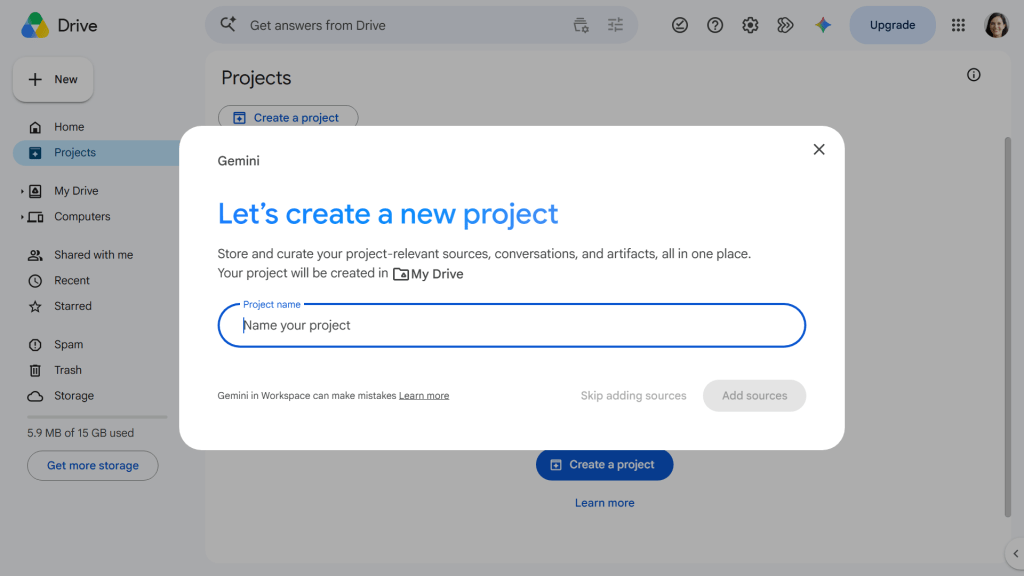
Key Capabilities Include:
- Source Aggregation: Users can pull in Docs, Sheets, Slides, PDFs, and even Microsoft 365 files.
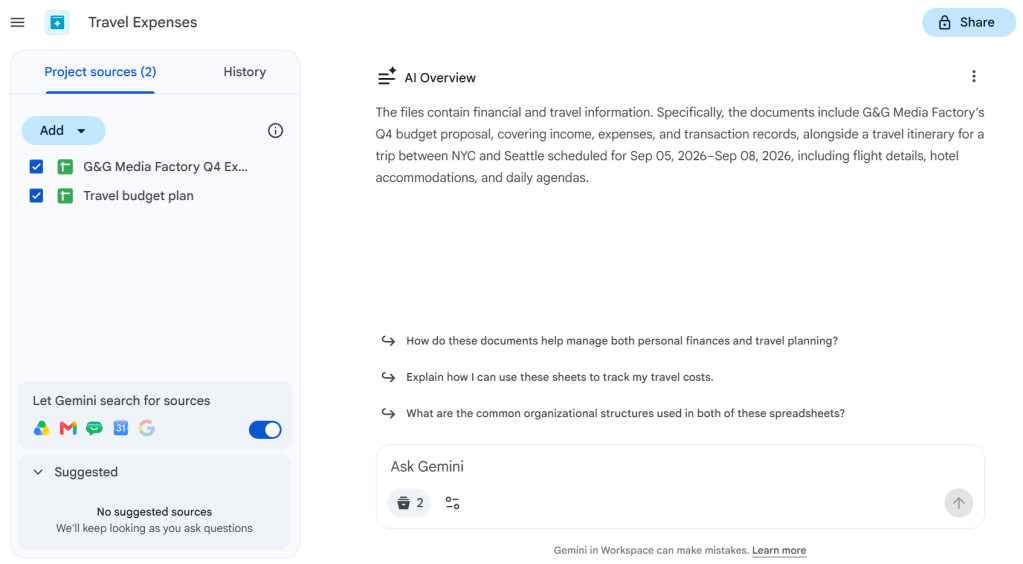
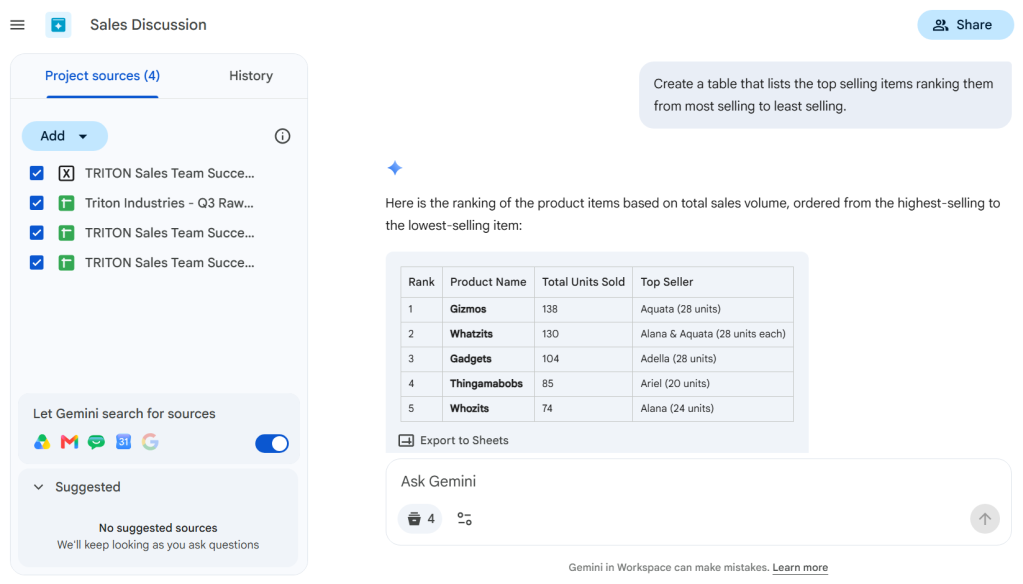
- Active Contextual Searching: With the "Let Gemini search for sources" toggle enabled, the AI acts as an intelligent agent, periodically scanning your Gmail threads or calendar invites for information that belongs in the project, effectively automating the "file gathering" phase of project management.
- Data Transformation: Beyond simple summarization, users can command Gemini to extract complex data points from multiple spreadsheets, organize them into a structured table, and export that table directly into a new Google Sheet.
Implementing Drive Projects: A Step-by-Step Guide
To leverage this feature, you must have an active Google AI-enabled subscription (such as Google Workspace Business or Enterprise editions).
Creating Your First Project
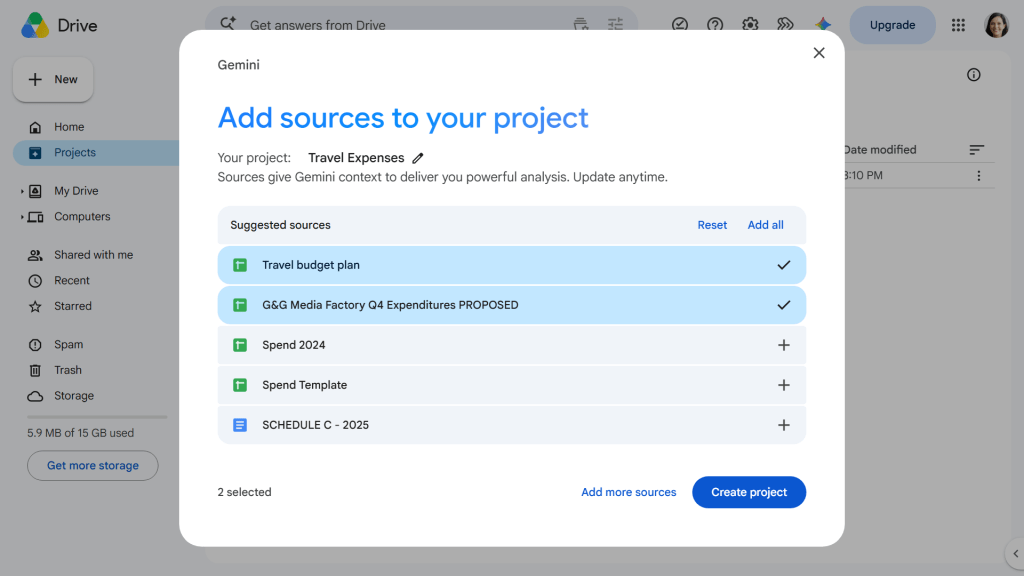
- Initiation: Navigate to Google Drive. You can start a new project from the sidebar or directly within an existing Gemini chat window by selecting "Save as a project."
- Selection: Upon naming your project, you will be prompted to "Add sources." Gemini will provide smart recommendations based on your recent activity, but you retain full control to manually select folders or individual files.
- Refinement: Once the project is live, utilize the sidebar to toggle permissions. This is where you grant the AI the "permission" to search your peripheral workspace tools for additional, related context.
Managing and Scaling
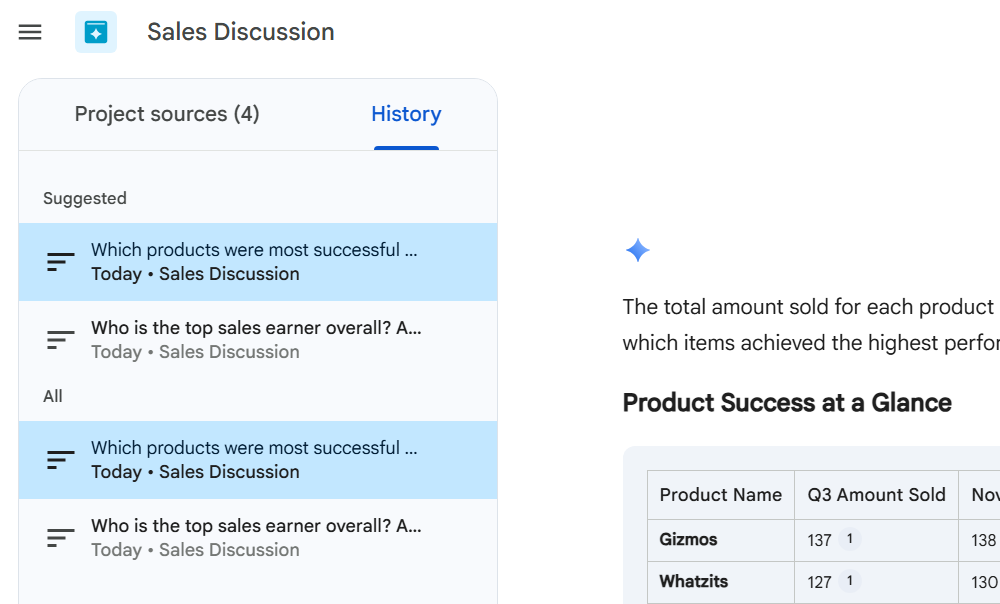
A project is not a static repository; it is a living workspace. You can return to any project at any time to add new files as a project evolves or remove outdated documents to keep the AI’s focus sharp. The "History" tab acts as a chronological ledger, allowing you to pick up previous brainstorming sessions exactly where you left off.
Implications for Corporate Collaboration
Perhaps the most significant aspect of Drive Projects is its impact on team workflows. In a traditional setting, sharing knowledge requires sending individual links or granting access to entire folders, which often leads to permission creep.
The Collaborative Advantage
When you share a Project, you are sharing a curated workspace. If a colleague has Gemini access, they can enter the project and perform their own queries, benefiting from the same grounded context as the project creator. This eliminates the "information gap" where team members spend hours catching up on the context of a project they have just joined.
Privacy and Permissions: The "Safety-First" Approach
Because Projects involve sensitive business data, Google has implemented rigorous permission controls. When you share a Project, the system respects the existing security settings of the underlying files:
- Inherited Permissions: If you add a file that a colleague doesn’t have access to, they still won’t be able to open that file, even if they can see it in the Project list.
- Access Tiers: You can assign users as "Viewers" or "Editors," mirroring standard Google Drive sharing protocols. This ensures that you can collaborate without sacrificing control over who sees which piece of proprietary information.
Addressing Potential Limitations
While powerful, users should remain cognizant of the limitations inherent in generative AI:
- The Human-in-the-Loop Requirement: Despite the improved focus of Projects, AI is not infallible. All outputs—especially those involving budget figures or legal clauses—must be verified by a human.
- Web-First Design: Currently, the most robust features are tethered to the web interface. While the mobile app allows for viewing and basic administration, the deep-dive analysis and project creation are best handled in a desktop environment.
- Subscription Barrier: Access is currently limited to paid, high-tier Workspace plans. For smaller organizations or individual users, this remains a premium-tier tool.
Strategic Outlook
The introduction of Drive Projects signals a broader shift in how we interact with cloud storage. We are moving away from a "filing cabinet" model—where we spend time searching for files—toward an "active agent" model, where the files serve the AI, and the AI serves the project.
For managers and executives, this represents a fundamental change in delegation. Instead of asking an employee to "summarize the last three months of meetings and budget reports," a leader can now point an AI toward a project folder and receive a high-level briefing in seconds.
As Google continues to refine these tools, the expectation is that Projects will become the standard interface for knowledge management. By bundling, querying, and collaborating within a unified, AI-curated environment, organizations can significantly reduce the "tax" of information overload.
Conclusion
Google Drive Projects is more than a simple organizational folder; it is a tactical layer for AI-driven work. Whether you are managing a complex product launch, analyzing quarterly performance, or tracking a long-term research initiative, the ability to "ground" your AI in a specific, curated set of sources is a game-changer. By embracing this feature, you are not just organizing your files—you are building a smarter, faster, and more collaborative way to work.