Email remains the backbone of professional and personal communication, yet for many, the mobile experience is often defined by frustration rather than efficiency. While Google’s Gmail app for Android is ubiquitous, it is frequently treated as a "black box" where users interact only with the surface-level functions.
However, beneath the familiar interface lies a sophisticated suite of advanced tools and customization options. By tapping into these hidden features, users can transform their mobile inbox from a source of daily stress into a streamlined productivity engine. This guide explores 16 expert-level configurations designed to optimize your workflow, reclaim your time, and customize the Gmail Android experience.
The Core Foundations: Customizing Your Workflow
To truly master Gmail on Android, one must first understand that the interface is highly modular. The default settings are designed for the "average" user, but they are rarely the most efficient for power users.

1. Advanced Email Formatting
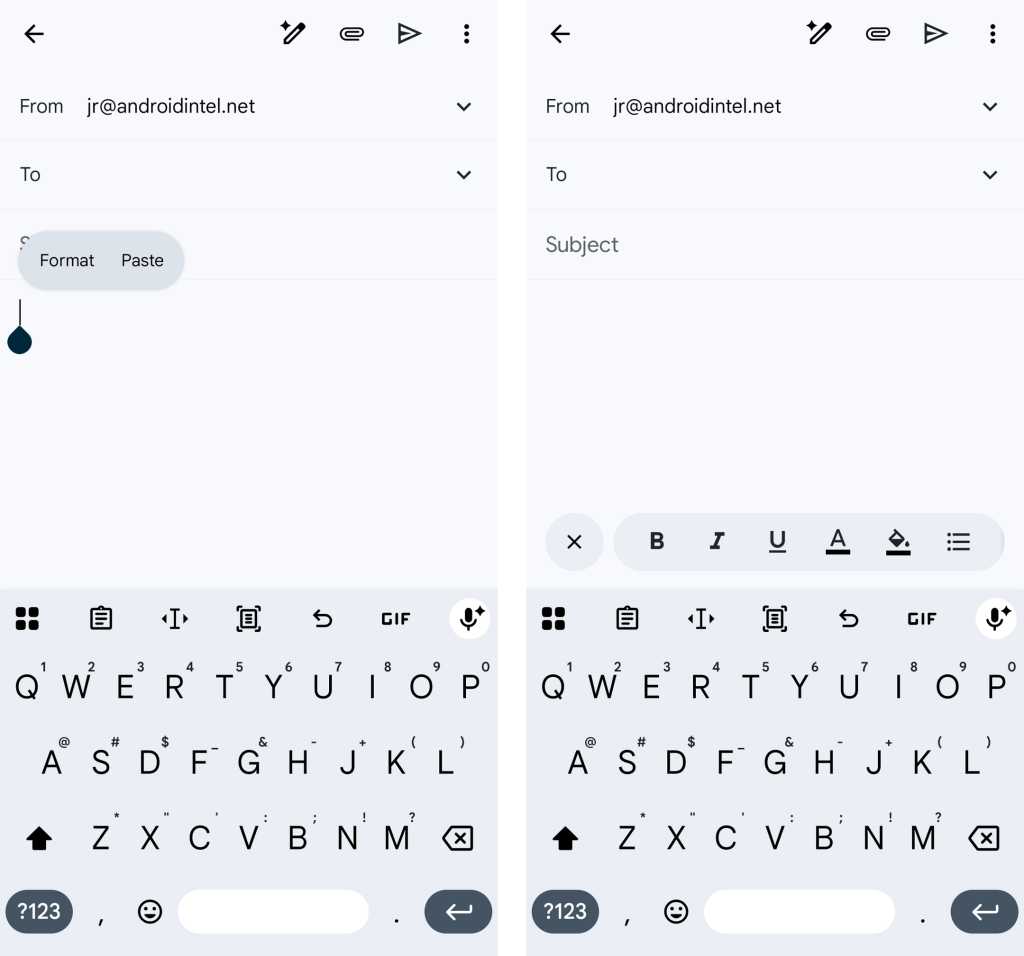
Many users perceive the mobile compose window as a plain-text environment. By long-pressing on any empty space within the composition screen, you reveal a hidden "Format" menu. This unlocks a professional-grade editor, allowing for bold, italic, and underlined text, font color adjustments, and background highlighting. Crucially, this menu also provides a "Clear Formatting" option, which is an essential tool for users who frequently copy-paste text from various web sources and need to strip away inconsistent styles.
2. Customizing Swipe Gestures
The inbox is a high-traffic area. By navigating to Settings > General Settings > Swipe Actions, you can redefine what a left or right swipe does. Instead of the default archive/delete options, you can map these gestures to "Snooze," "Mark as Unread," or "Move to Folder." Tailoring these actions to your personal workflow allows for rapid-fire inbox triage.
3. Rapid Account Switching
For users juggling multiple identities—personal, professional, and perhaps a niche side project—the navigation drawer can be cumbersome. A lesser-known gesture allows you to switch between accounts instantly: simply swipe up or down on your profile picture in the top-right corner. This "flick" motion saves precious seconds when moving between high-priority threads.
Advanced Communication and Contact Management
Managing relationships is the primary purpose of email. Gmail’s Android app offers several "under-the-hood" shortcuts to facilitate faster, more effective communication.
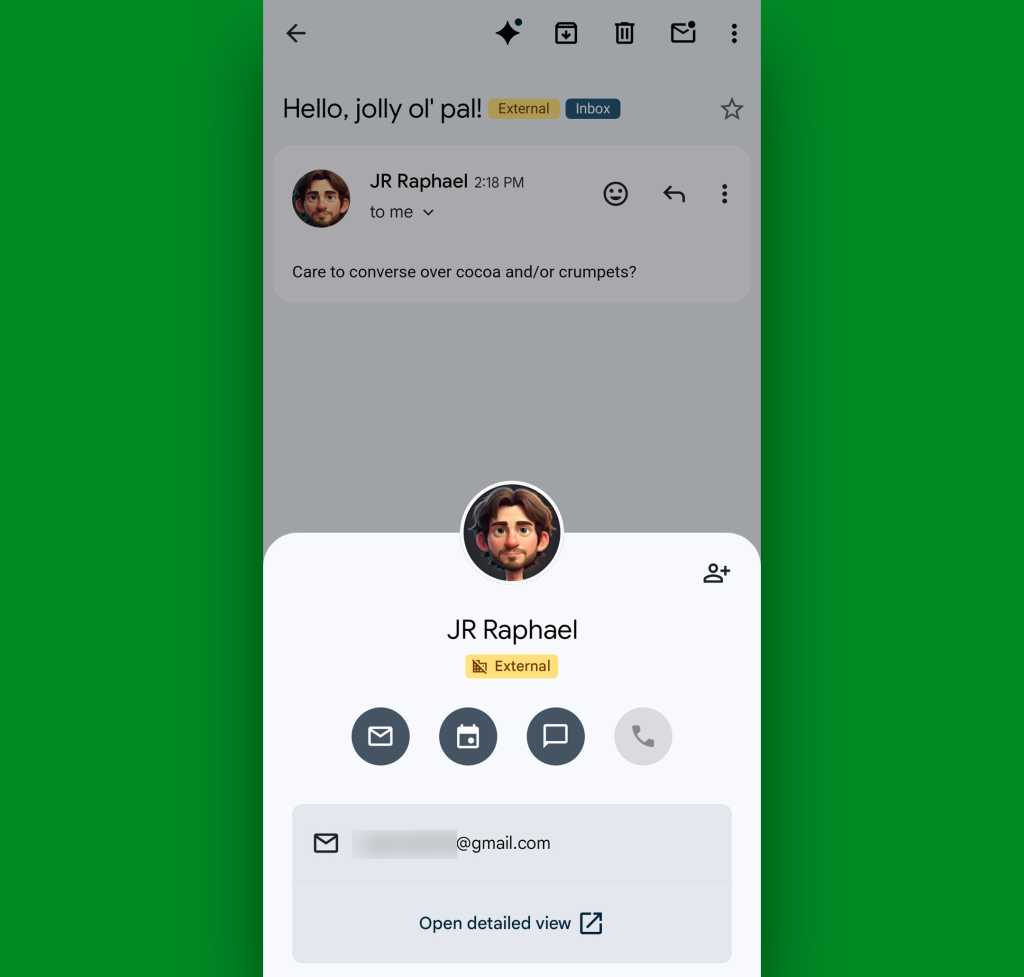
4. The Profile Picture Command Center
When viewing an email, tapping the sender’s avatar reveals a rich contact card. This panel is not merely for identification; it is a hub for action. From here, you can launch a new email, start a Google Chat session, or initiate a phone call. It effectively serves as a shortcut to your contacts database, allowing you to manage professional relationships without leaving the email interface.
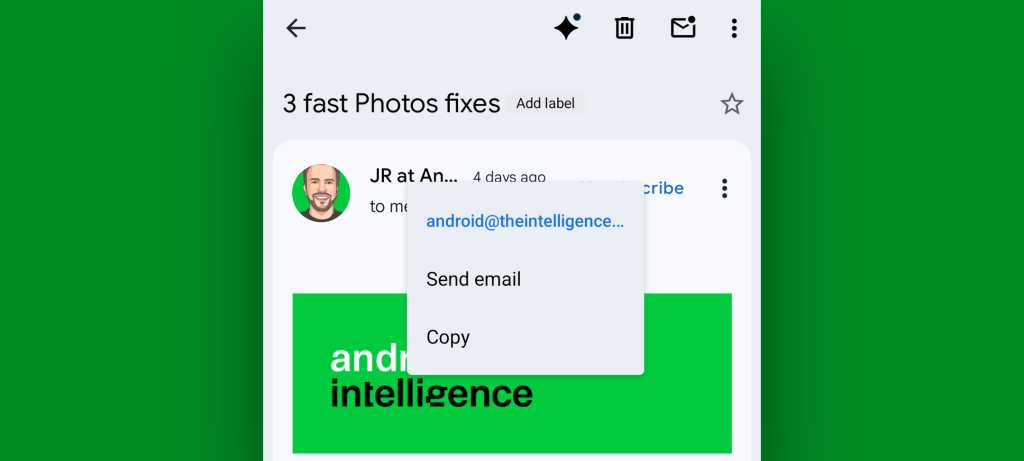
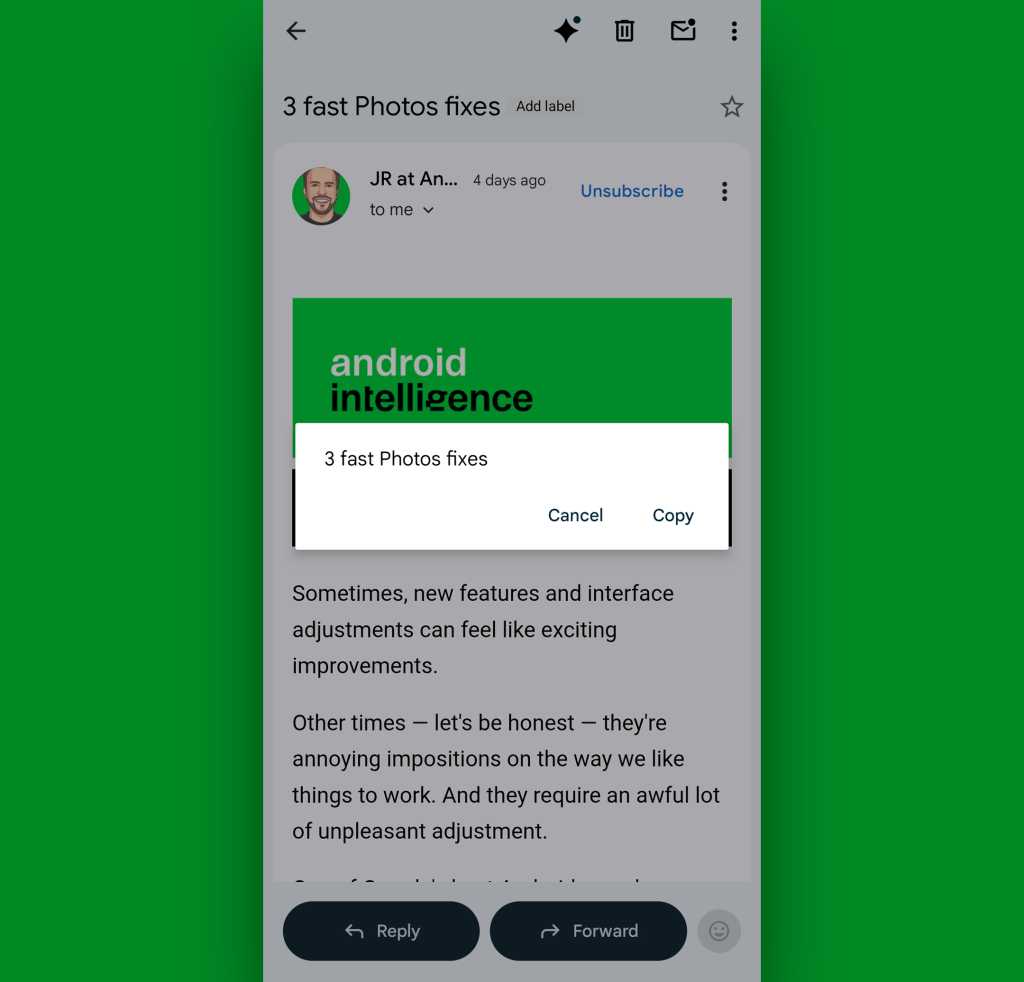
5. Contextual Long-Press Menus
Beyond the standard interactions, the sender’s name and the email subject line are interactive elements. Long-pressing the sender’s name provides an immediate option to copy their email address to the system clipboard or initiate a new thread. Similarly, long-pressing the subject line allows for an instant copy-to-clipboard, which is invaluable when you need to reference specific ticket numbers or project codes in other applications.
6. The "Reply-All" Recovery
We have all hit the wrong reply button. In the Android app, if you accidentally hit "Reply" when you intended "Reply-All" (or vice versa), you do not need to discard the draft. By tapping the "Reply" button text within the active composition window, a dropdown menu appears, allowing you to toggle the thread type seamlessly.
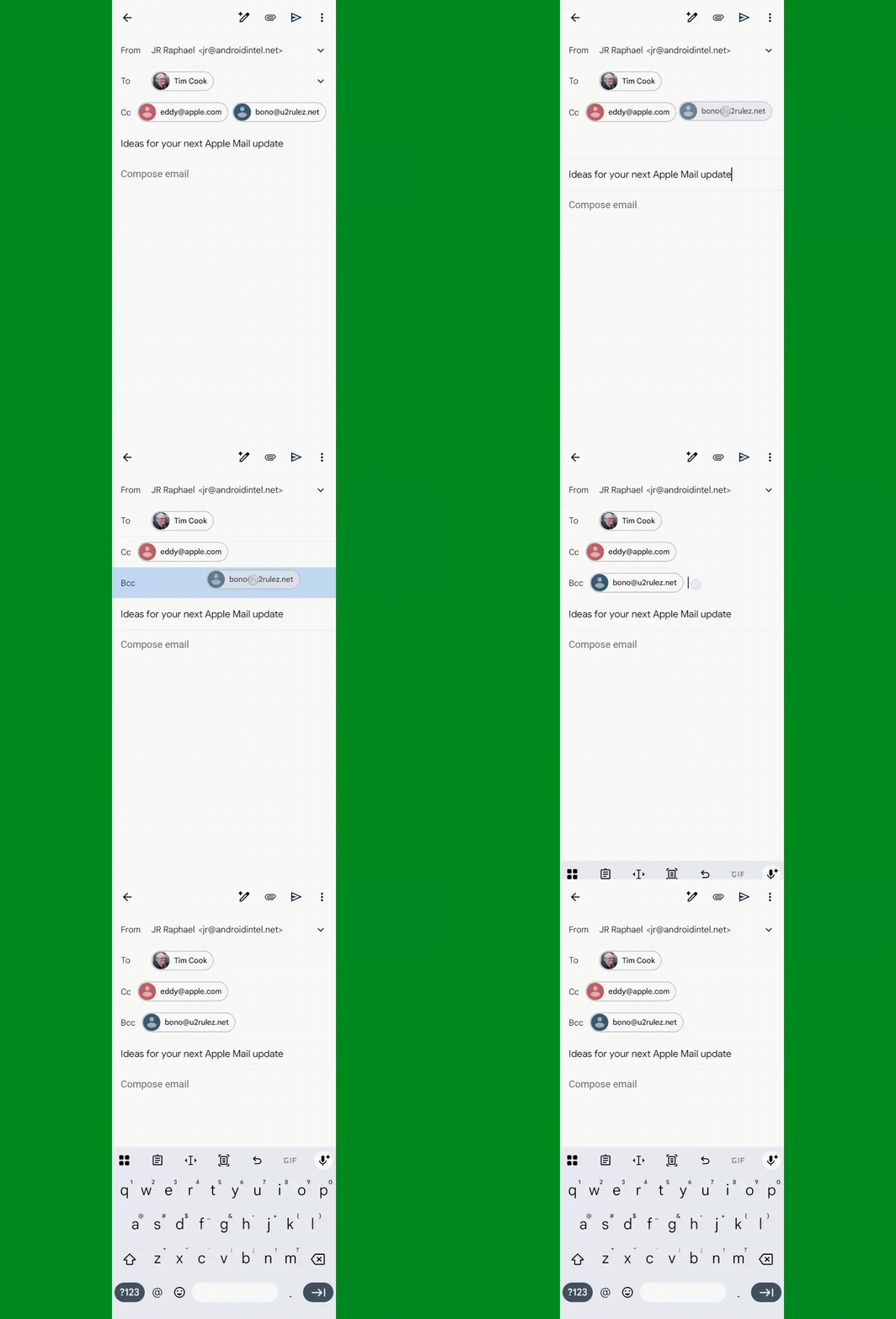
7. The @-Mention Summoning Spell
When adding a new recipient to an existing thread, there is no need to scroll to the top of the screen. While typing in the body of your message, simply type @ or + followed by the first few letters of a contact’s name. A selector box will appear, allowing you to insert the contact directly into the "To" field without breaking your typing flow.
Guardrails and Organizational Control
With high-volume communication comes the risk of error. Gmail offers several features designed to prevent "oops" moments that could prove costly in a professional setting.
8. The "Action Confirmation" Shield
To prevent accidental deletions or premature sends, navigate to General Settings > Action Confirmations. You can toggle confirmation prompts for deleting, archiving, or sending. While these add a minor friction point to your workflow, the peace of mind they provide—particularly when managing sensitive correspondence on a small touchscreen—is significant.
9. Managing the "Promotions" Tab
The Promotions tab often features "Top Picks" at the top, which can obscure time-sensitive or chronological emails. To restore a standard chronological feed, navigate to Settings > [Account] > Inbox Categories > Promotions and uncheck "Enable Top Picks." This ensures that your inbox remains organized by date rather than by Google’s algorithmic interpretation of "value."
10. Silencing "Nudgy" Notifications
Google’s AI-driven nudges, which prompt you to follow up on old emails, are not universally appreciated. If you prefer to manage your own task list, disable these prompts by going to Settings > [Account] > Reply and Follow Up and unchecking both suggestions. This returns control of your inbox priorities entirely to you.
Streamlining the User Interface
The modern Gmail app is increasingly cluttered with integrations. If you find your inbox interface bloated, you can regain control.
11. Removing the Navigation Bar
Google’s persistent navigation bar for Chat and Meet often consumes valuable screen space. For those who prefer a dedicated email experience, this can be removed. Access Settings > [Account] and toggle off the integration settings for Chat and Meet. This simple act declutters the interface and prevents accidental switches between services.
12. Automated Package Tracking
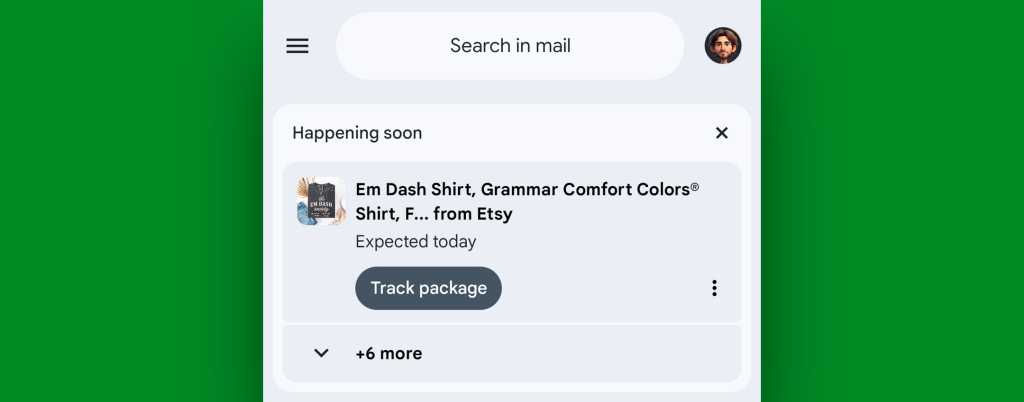
One of the most practical, yet overlooked, features is native package tracking. By enabling this in Settings > [Account] > Package Tracking, Gmail will surface shipping cards at the top of your inbox. It monitors delivery status in real-time, removing the need to manually check third-party logistics websites. Note that this feature is currently limited to personal Google accounts and is not available for standard Google Workspace organization accounts.
13. The Out-of-Office Vacation Responder
Previously a desktop-only luxury, the Vacation Responder is now fully configurable within the mobile app. Found under Settings > [Account] > Vacation Responder, this allows for rapid deployment of an away message when you are on the move. It is a vital tool for maintaining professional standards while traveling.
Strategic Notifications and "High Priority" Filtering
Notifications are the primary cause of "email fatigue." By being more selective, you can actually improve your response times to the messages that truly matter.
14. High-Priority Notifications
Instead of receiving a ping for every promotional newsletter or system alert, navigate to Settings > [Account] > Notifications and select "High priority only." The app uses machine learning to filter out background noise, alerting you only to communications that require your immediate attention.

15. Custom Notification Formulas
For total control, you can implement custom filters. While this requires setting up a filter rule on the desktop version of Gmail, the results apply to your Android app. By creating a filter that labels specific incoming mail (e.g., from a specific client domain) as "Important," you can trigger custom notification settings that bypass the "High Priority" filter, ensuring you never miss a mission-critical update.
16. The "Back-Motion" Optimization
While not a setting within the app itself, understanding the Android system-wide "Back" gesture is crucial for Gmail users. The swipe-to-back gesture often conflicts with the swipe-to-archive gesture in the Gmail app. By learning to perform the back gesture from the very bottom of the screen or using the "peek" method, you can effectively avoid the common frustration of accidentally archiving messages while trying to navigate menus.
Implications for Modern Productivity
The adoption of these 16 features marks a shift from being a passive recipient of email to an active manager of information. By customizing the interface to match your specific cognitive style, you reduce the "micro-friction" of mobile usage.
In a professional context, these tools allow for faster turnaround times and more precise communication. In a personal context, they provide the necessary barriers to keep digital communication from encroaching on leisure time. The Gmail Android app is not merely a reader; with the right configuration, it is a robust, highly capable workstation that fits in the palm of your hand. Implementing these changes may take ten minutes of your time today, but the cumulative time saved over the coming year will be measured in hours—or perhaps, days.