
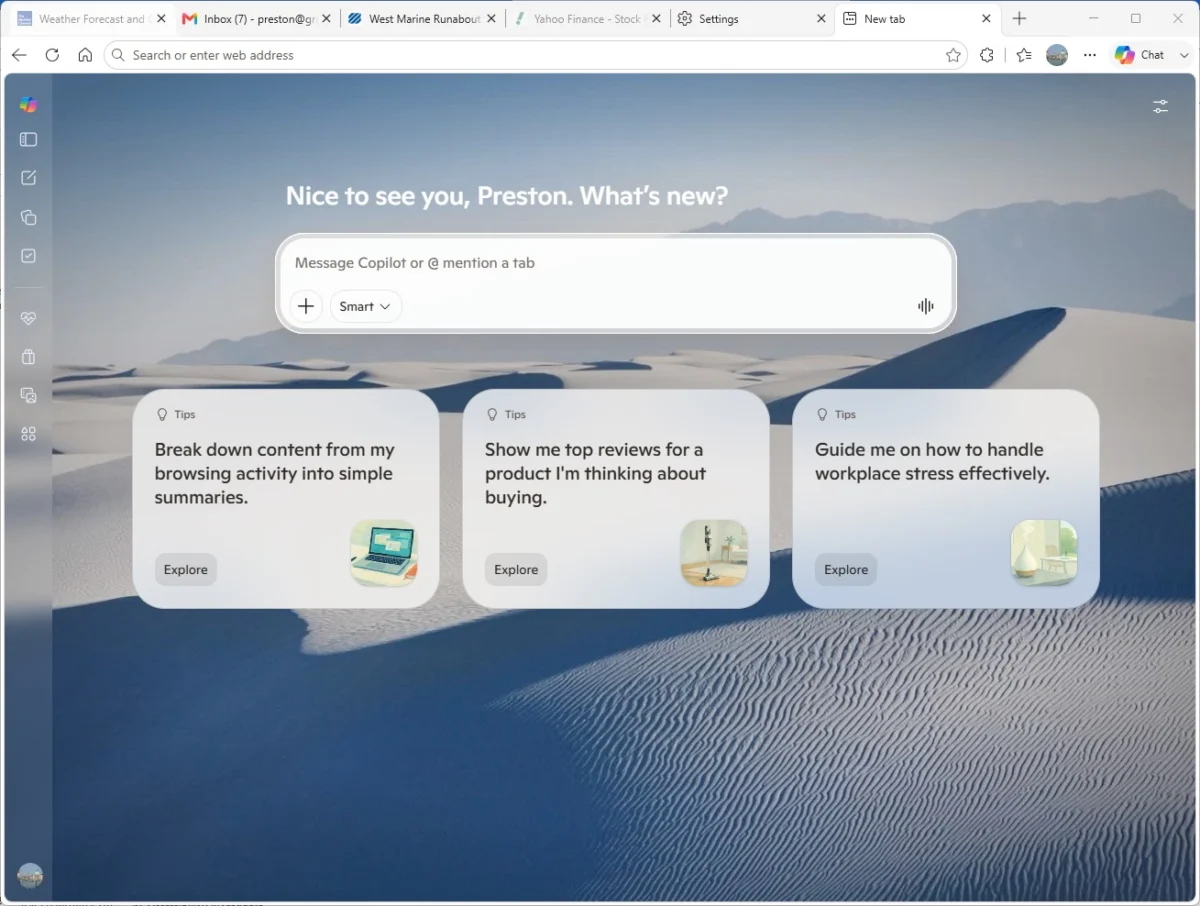
In the modern digital landscape, the web browser has evolved from a simple window into the web to a sophisticated operating environment. For many professionals, the browser is where the vast majority of the workday unfolds. However, without proper configuration, this workspace can quickly devolve into a chaotic ecosystem of cluttered tabs, resource-draining processes, and fragmented attention spans.
Microsoft Edge, built on the Chromium engine, has transitioned into a formidable "productivity powerhouse" capable of streamlining complex workflows. By leveraging built-in features—ranging from AI-driven assistance to advanced resource management—users can transform their browsing experience from a source of fatigue into a catalyst for efficiency.

1. The Architecture of Productivity: Main Facts
The primary challenge of browser-based work is the lack of boundaries. When personal browsing, professional research, and project management tools compete for the same digital real estate, productivity suffers.
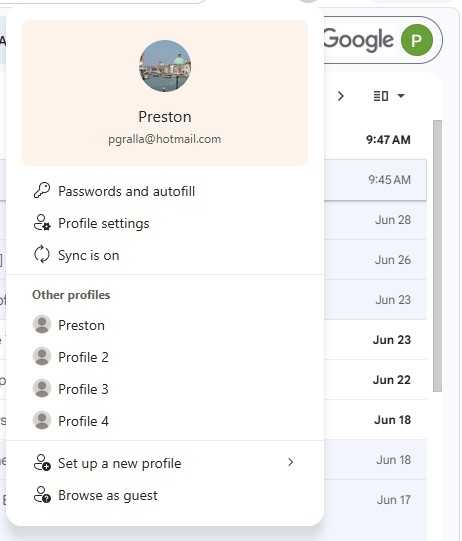
Microsoft Edge addresses this through a robust profile system that acts as a container for your digital identity. By segregating work from personal life at the browser level, you ensure that your favorites, extensions, passwords, and browsing history remain contextually relevant. Furthermore, Edge’s integration of AI, via its Copilot engine, allows users to synthesize massive amounts of data in real-time, effectively offloading cognitive tasks to the software.
2. A Chronology of Evolution: From Simple Browser to AI Engine
To understand the current state of Edge, one must look at its rapid development cycle.
- 2021: Microsoft moved away from the legacy Edge architecture to Chromium, prioritizing performance and compatibility.
- 2022–2023: The browser introduced advanced tab-management features, such as Sleeping Tabs and Tab Groups, directly targeting the "memory leak" issues associated with heavy multitasking.
- 2024–2026: The integration of Generative AI (Copilot) fundamentally changed the user interface. Edge is no longer just a display tool; it is now an active participant in research and content creation.
3. Optimizing Your Environment: Tactical Implementation
Mastering Profiles for Work-Life Balance
Mixing personal and professional data is a recipe for inefficiency. To maintain focus, you must utilize separate profiles.
- Creation: Navigate to Settings > Profiles to establish unique accounts for work and personal use.
- Automation: Use the "Automatic Profile Switching" feature found in settings to ensure that when you visit a work-related URL (like an internal company portal), Edge automatically prompts you to switch to your professional profile.
Accelerated Navigation
Stop wasting time navigating through cluttered bookmarks.
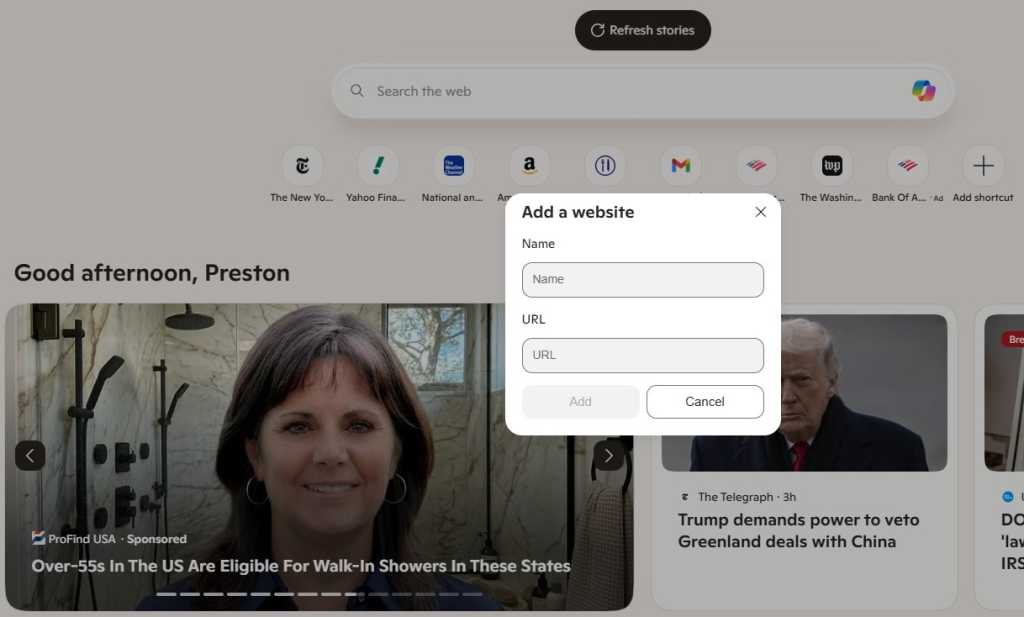
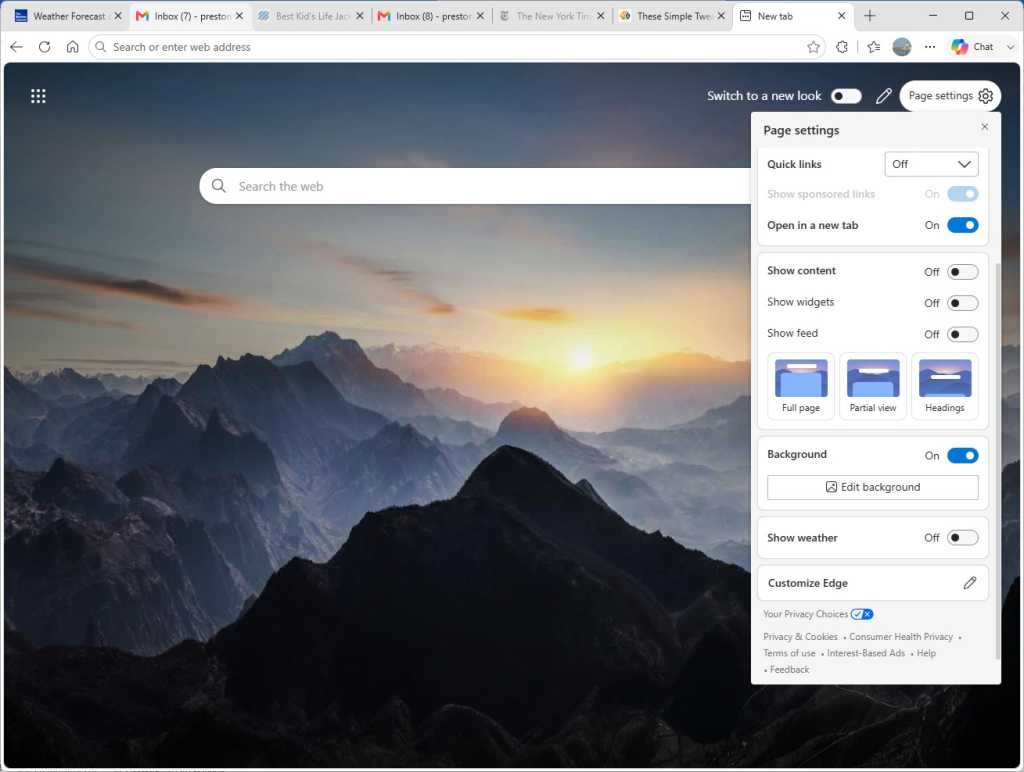
- Quick Links: Enable "Quick Links" on your New Tab page. Pin your most critical internal tools or dashboards to the top of every new window.
- Taskbar Integration: For mission-critical sites (e.g., Jira, Outlook, or Slack), use the More tools > Pin to taskbar feature. This creates a "web app" experience, allowing you to launch these sites as if they were native Windows applications, effectively bypassing the need to hunt through your browser history.
Managing Cognitive Load with Tab Groups
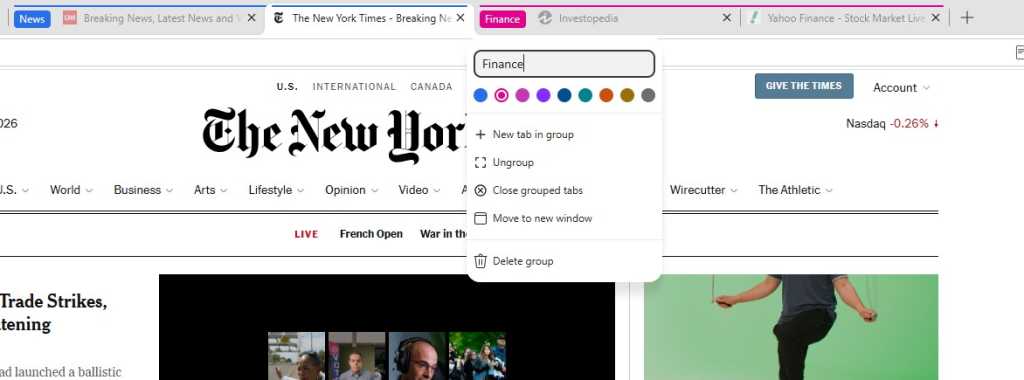
"Tab fatigue" is a genuine psychological burden. By right-clicking a tab and selecting Add tab to new group, you can visually color-code your research. Whether you categorize by project, urgency, or topic, this organization allows for "context switching" that is much faster than scanning dozens of open tabs.
4. Supporting Data: The Efficiency Gains
Microsoft’s internal testing suggests that these features are not merely cosmetic.
- Resource Management: By utilizing "Sleeping Tabs," Edge can reduce memory usage by an average of 32% and CPU utilization by 37%. This is critical for users on hardware with limited RAM or those who keep dozens of tabs open for days at a time.
- Battery Longevity: The "Energy Saver" mode provides, on average, an additional 25 minutes of battery life by throttling background activity on inactive tabs. For the mobile professional, these metrics represent the difference between finishing a presentation on a plane or losing work to a dead battery.
5. Official Perspectives and Security Implications
Microsoft’s official stance on Edge is that it is an "AI-first" browser. While marketing terminology often leans toward hyperbole, the security implications of this AI integration are grounded in reality.
The Scareware Blocker
One of the most significant, yet under-utilized, security features is the AI-powered "scareware" blocker. As cybercriminals increasingly use sophisticated social engineering—such as fake "system infection" popups designed to trick users into calling support lines—Edge’s machine-learning model proactively identifies and halts these malicious scripts. Users with limited system resources (under 5 cores or 2GB RAM) should ensure this feature is manually toggled on via Settings > Privacy, search, and services > Security.
6. Advanced Workflow: AI-Driven Research
The integration of Copilot into the sidebar has turned the browser into a collaborative partner.
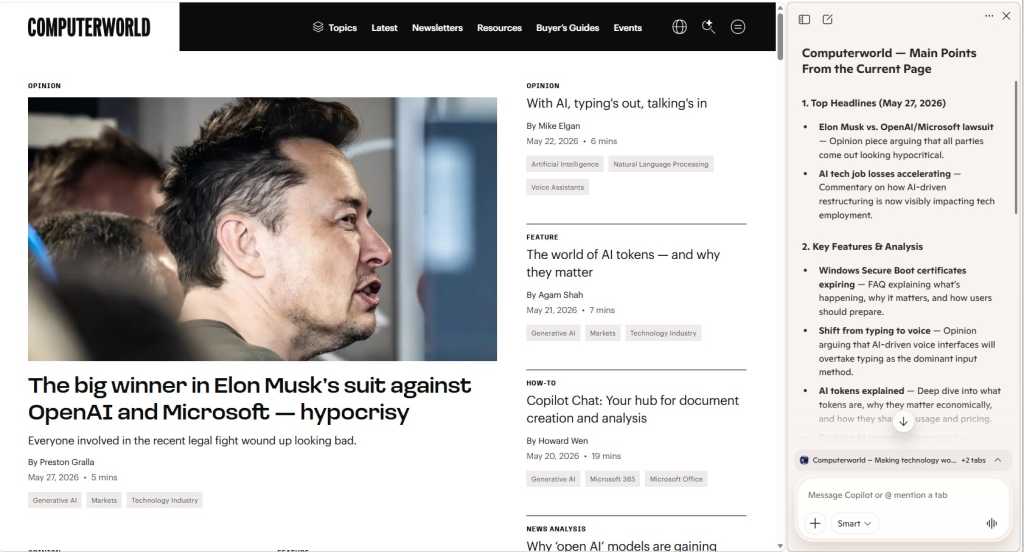
- Page Summarization: Instead of reading long-form technical documentation, users can query the Copilot sidebar to "Summarize the main points on this page."
- Cross-Tab Context: A powerful, often overlooked capability is the ability to query information across multiple open tabs. By clicking the "summarize" option within the Copilot pane, you can extract insights from your current research session without manually visiting every site again.
7. The Power-User’s Shortcut Cheat Sheet
To achieve maximum efficiency, muscle memory is key. Relying on the mouse is the single biggest bottleneck in professional computing. By integrating the following keyboard shortcuts, you can shave seconds off every interaction—compounding into hours of saved time over a fiscal year.
| Task | Shortcut |
|---|---|
| Open Copilot Pane | Ctrl + Shift + . |
| Open New Tab | Ctrl + T |
| Select URL (Address Bar) | Alt + D or Ctrl + L |
| Mute/Unmute Tab | Ctrl + M |
| Search/Find on Page | Ctrl + F |
| Close Current Tab | Ctrl + W |
| Switch to Next Tab | Ctrl + Tab |
8. Implications for the Future of Work
The shift toward browser-based workflows is permanent. As companies move their entire infrastructures to the cloud (SaaS models), the browser effectively becomes the new OS. The ability to manage this environment effectively is no longer a "tech tip"—it is a core professional competency.
By implementing these 12 strategies, you are not just cleaning up your browser; you are reclaiming your focus. From the granular control of resource-heavy background processes to the high-level cognitive support provided by AI integration, Microsoft Edge offers a comprehensive suite of tools designed to meet the demands of the modern, high-speed digital economy.
As you look to refine your process, remember that the most effective tool is the one that stays out of your way. Configure these settings once, embrace the shortcuts, and allow your browser to function as a seamless extension of your professional intent.