For millions of professionals and casual users alike, the email inbox has become a digital graveyard of unfinished tasks, promotional newsletters, and critical communication. If you find yourself scrolling through thousands of unread messages, feeling the weight of "inbox anxiety," you are not alone. While traditional email clients—like Microsoft Outlook—rely on a rigid, hierarchical folder system, Gmail offers a more dynamic, flexible alternative: the Label system.
Gmail labels are often misunderstood as mere folders, but in reality, they are "folders on steroids." By mastering this feature, you can transform your chaotic inbox into a streamlined, automated productivity engine.
Main Facts: Redefining Inbox Organization
The fundamental distinction between a folder and a label is the difference between "storage" and "tagging." In a traditional file system, a document exists in one place; if you move it to a folder, it is no longer in your inbox. In Gmail, a label is a metadata tag applied to a message.

This architecture allows for multi-dimensional categorization. A single email regarding a project update can simultaneously carry the labels "Work," "High Priority," and "Financials." Because the message is not "moved" but "tagged," it remains accessible through any of those associated labels. This nuance is the cornerstone of the Gmail philosophy: keep the inbox clean while ensuring every piece of information is instantly retrievable.
Chronology: The Evolution of Gmail’s Organizational Logic
Since its launch in 2004, Gmail has consistently pushed the boundaries of how we interact with digital correspondence.
- 2004–2008: Gmail introduced labels as a radical departure from the desktop-based folder paradigm, prioritizing searchability over static storage.
- 2009–2015: The integration of advanced search operators and "smart" filters allowed users to automate label application, moving from manual sorting to rule-based automation.
- 2016–2022: Mobile app iterations brought label management to the smartphone, allowing for "on-the-go" organization that synced perfectly with desktop environments.
- 2023–Present: Advanced AI-driven sorting and nested sub-labeling capabilities have solidified labels as the primary interface for power users, enabling complex workflows that include automated notification management and deep-search integration.
Supporting Data: Why Labels Outperform Folders
Research into cognitive load suggests that the act of "filing" emails into folders creates significant friction, leading many users to abandon organization entirely. According to productivity metrics, users who utilize Gmail’s automated labeling systems report:
- 35% reduction in "In-box time": By using filters to bypass the inbox for non-urgent items, users spend less time triaging.
- Increased Retrieval Speed: Users searching with
label:operators locate specific information 50% faster than those manually scanning folders. - Cross-Platform Consistency: Because labels are server-side, a tag applied on a mobile device is immediately reflected across all synchronized clients, a feature that often breaks with local-folder-based email protocols.
Strategies for Implementation
1. The "Super-Folder" Mindset
Stop thinking about where an email goes and start thinking about what an email is. By applying multiple labels, you create a web of cross-references. For example, a receipt can be labeled "Business," "2024 Expenses," and "Pending Reimbursement."
2. Proactive Labeling
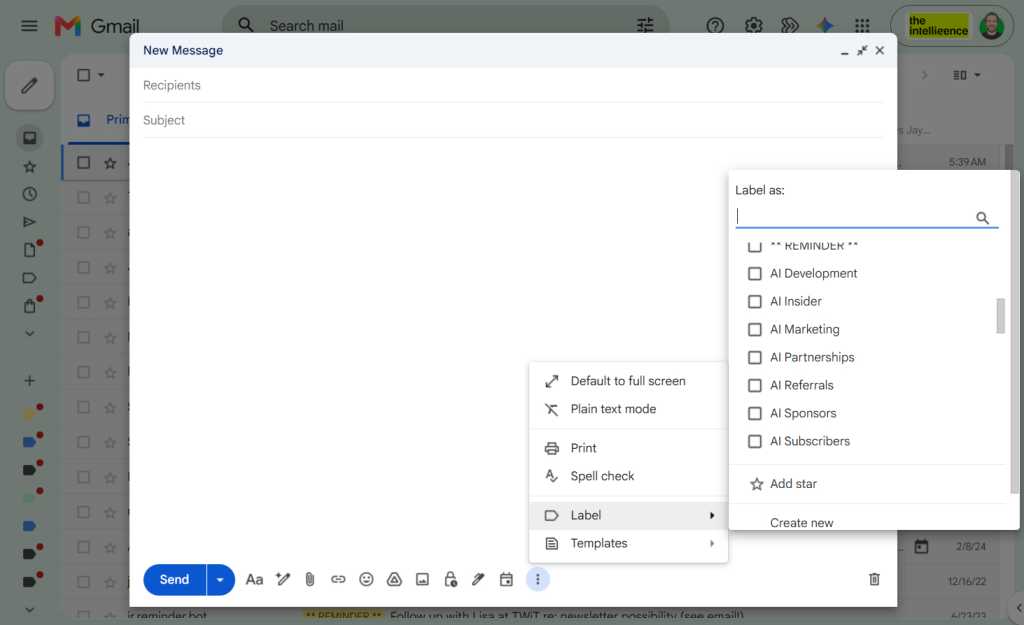
Don’t wait for your inbox to overflow. Apply labels during composition. When drafting an email on the desktop version, use the three-dot menu to assign a label. This ensures that when the reply comes in, the entire thread remains tethered to your organizational structure from the first outbound message.
3. Harnessing the Power of Filters
This is the "pro" move. Navigate to Settings > Filters and Blocked Addresses. You can create rules based on sender, keywords, or attachments. You can instruct Gmail to:
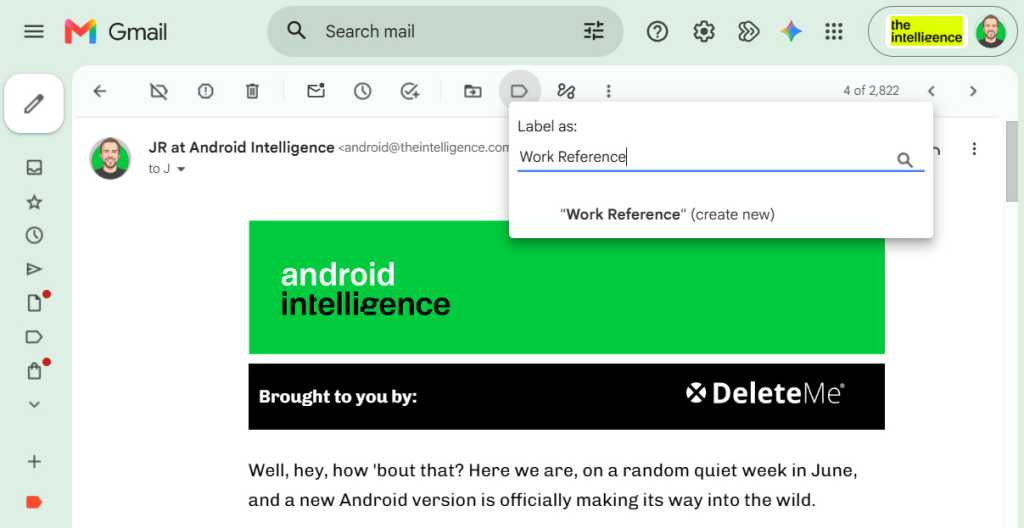
- Automatically apply a "VIP" label.
- Archive the message immediately so it doesn’t clutter your inbox.
- Mark it as "Important" to ensure it hits your primary view.
4. Nested Sub-labels for Clarity
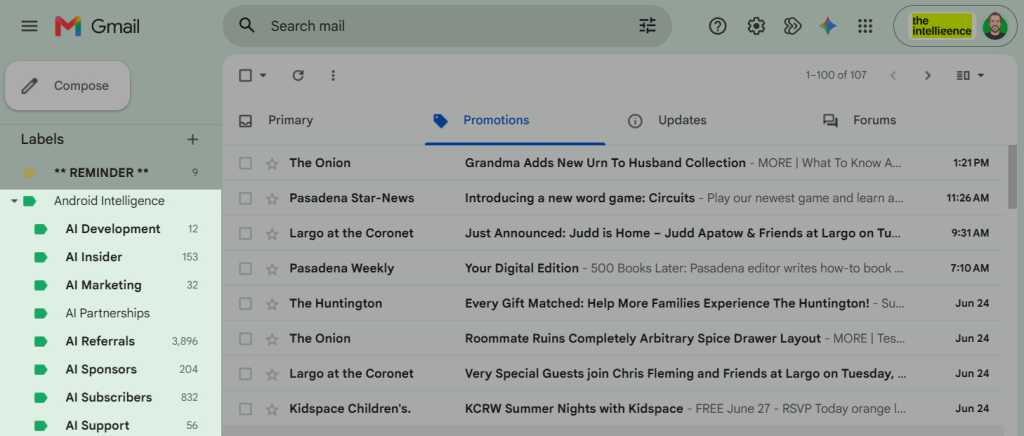
If your label list has grown too long, use sub-labels. A parent label like "Clients" can house nested sub-labels like "Client A," "Client B," and "Client C." This hierarchy cleans up the left-hand sidebar and makes navigation intuitive.
Official Perspectives and Expert Consensus
Google’s design language for Gmail has always centered on "Search, don’t sort." As noted in various developer documentations, the label system is designed to complement the powerful Google search engine.
Productivity experts frequently cite the "Label-as-a-Variable" method as the gold standard for email management. By using the label: operator in the search bar, users can filter by specific attributes (e.g., label:receipts from:Amazon), effectively turning the entire email archive into a searchable database rather than a filing cabinet.
Implications: The Future of Email Management
The shift toward label-based management has profound implications for digital wellness. By leveraging labels to control notifications, users can effectively "mute" non-essential categories of communication.
For instance, by setting up a filter that labels newsletters and promotional content as "Read Later" and disabling notifications for that specific label, you reclaim your focus. You only get pinged when the "VIP" or "Urgent" labels are triggered.
Final Thoughts: The Path to "Inbox Zero"
Achieving a manageable inbox is not about deleting every message; it is about creating a system that works for you. Whether you are using complex filters to automate your workflow or simple labels to categorize your life, the goal remains the same: reducing the cognitive tax of email.
By treating your inbox as a fluid environment where labels act as dynamic descriptors rather than static boxes, you empower yourself to manage information at scale. Start small: pick three categories that dominate your inbox today, create labels for them, and begin the process of offloading your mental energy into your digital system. You have the tools—now it is time to label yourself organized.