For many professionals, the inbox is the primary battlefield of the modern workday. It is a relentless stream of demands, information, and communication that can easily overwhelm even the most organized individuals. While Gmail is the world’s most popular email service, most users interact with only a fraction of its true potential. Beneath its clean, minimalist interface lies a sophisticated engine of productivity features designed to reclaim your time.
By moving beyond the standard click-and-read workflow, you can turn your email client into a high-performance command center. This guide details 16 essential strategies—ranging from native interface tweaks to advanced keyboard-driven automation—to help you master your inbox once and for all.
The Efficiency Mandate: Why Inbox Optimization Matters
The "email debt" phenomenon is a documented productivity killer. Research into workplace behavior suggests that the average professional spends nearly 30% of their day managing email. The cognitive load of constant task-switching significantly reduces deep-work capacity. Consequently, the following tips are not merely cosmetic; they are structural changes to how you process information.
Unless otherwise specified, these techniques are optimized for the web-based desktop version of Gmail, which offers the most robust set of tools for high-volume email management.

Part I: Inbox Step-Savers and Interface Triage
The goal of efficient email management is to reduce the number of clicks required to reach a desired outcome.
1. Attachment Previews and Quick Actions
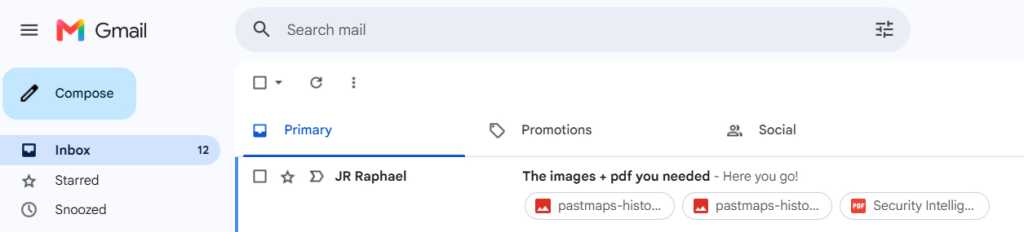
You do not need to open an email to understand its contents. In the default Gmail interface, attachment tiles appear directly below the subject line in your message list. Clicking these allows for an instant preview, bypassing the traditional "open-read-close" loop. Furthermore, hovering over a message in the inbox reveals a "quick-action" bar. Without opening the email, you can archive, delete, mark as read, snooze, or RSVP to calendar invites, saving seconds that aggregate into hours over a standard work week.
2. Mastering Threaded Conversations
When managing complex, multi-person threads, the default view can become cluttered. Keyboard shortcuts are your best defense here. By enabling shortcuts via the Gear icon (Settings > See all settings > Keyboard shortcuts), you gain the ability to manipulate threads with surgical precision. Hitting the semicolon key (;) expands an entire conversation, while the colon key (:) collapses it, allowing you to focus exclusively on the most recent correspondence.
3. The Power of Custom Keyboard Shortcuts
Generic shortcuts are useful, but custom ones are transformative. Once keyboard shortcuts are enabled, navigate to the "Advanced" tab in your settings to activate "Custom keyboard shortcuts." This allows you to map specific commands to keys that make sense to your personal workflow. For example, many power users remap the "Go to Inbox" command from the default gi to a single key, such as i. This minor adjustment reduces the physical friction of navigating between labels and the inbox.
4. Integrated Sidebar Productivity
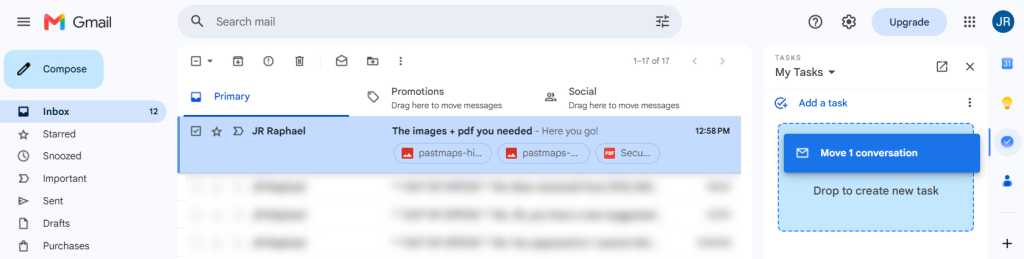
The right-hand panel in Gmail acts as a portal to the rest of the Google ecosystem. By keeping Google Calendar, Keep, and Tasks visible, you maintain context while processing email. A particularly powerful, albeit underutilized feature, is the ability to drag-and-drop an email directly into the Google Tasks panel. This action automatically creates a task with the email subject as the title and a link back to the original message, effectively turning your inbox into a project management tool.
Part II: Professional Composing and Advanced Navigation
Managing incoming mail is only half the battle; how you respond is equally critical to your overall efficiency.
5. The "Send and Archive" Workflow
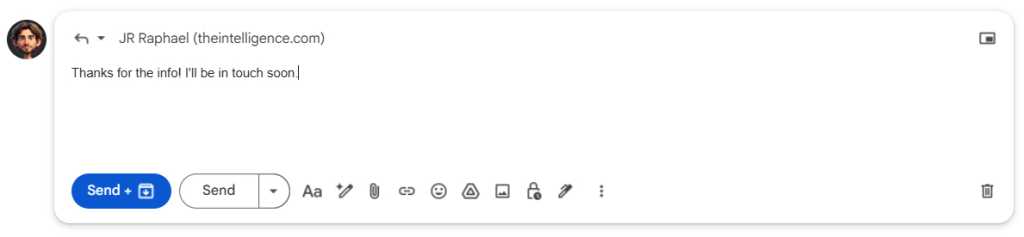
The most common mistake in email management is leaving a resolved conversation in your inbox. Gmail’s "Send and Archive" feature is designed to solve this. By enabling it in the General settings, you gain a secondary button when replying to messages. Clicking this sends your response and immediately removes the thread from your inbox, keeping your "to-do" list pristine. For maximum speed, use the Ctrl+Enter shortcut to trigger this action automatically.
6. Managing Drafts and Formatting
Mistakes happen, but discarding them shouldn’t be a chore. If you begin a draft only to realize it is unnecessary, Ctrl+Shift+D will instantly close the window and discard the content. When writing, stop navigating the toolbar for formatting. Standard shortcuts like Ctrl+B (Bold) and Ctrl+I (Italic) are common, but you should also memorize Ctrl+Shift+7 for numbered lists and Ctrl+Shift+8 for bulleted lists.
7. Global Navigation and "Unread" Triage
When viewing a message, hitting the underscore (_) key serves a dual purpose: it marks the message as unread and instantly returns you to the inbox view. This is an essential "triaging" command for users who prefer to quickly scan their inbox and mark items for later, rather than leaving them open.
Part III: The Art of Intelligent Snoozing
The "Snooze" feature is perhaps the most significant evolution in email management over the last decade. It shifts the burden of memory from your brain to the software.
The Philosophy of the Snooze
The "Two-Minute Rule" remains the gold standard of productivity: if a task takes less than two minutes, do it now. If it requires more, you must decide whether to act or defer. Snoozing allows you to defer effectively. By hitting b while a message is selected, you can schedule it to reappear in your inbox exactly when you are ready to handle it.
Advanced Snooze Management
- Bulk Snoozing: You can select multiple emails using the checkboxes in the inbox, then click the three-dot menu to snooze them all simultaneously.
- The "Snoozed" Folder: All deferred messages live in the "Snoozed" section of the left-hand navigation. If your priorities shift, you can enter this folder at any time to unsnooze a message or reschedule it for a different time.
- Mobile Integration: On the move? Customize your swipe actions in the Gmail mobile app (Android or iOS) to trigger a snooze. By assigning a "swipe-left" or "swipe-right" to "Snooze," you can clear your inbox while commuting or away from your desk.
Implications and Long-Term Strategy
Adopting these 16 tips requires an initial investment of time—specifically, the time required to adjust settings and build muscle memory for keyboard shortcuts. However, the return on this investment is significant.
By offloading the management of email to automated shortcuts and the snooze function, you reduce the "cognitive tax" associated with inbox maintenance. This creates the mental space necessary for higher-level work. As the digital landscape becomes increasingly cluttered with information, the ability to control one’s digital intake is no longer a luxury; it is a vital professional skill.
Final Recommendations
Start by enabling keyboard shortcuts today. Spend one week using only the ? key to pull up the full list of available commands. Once you have mastered the basics, move on to custom shortcuts and the "Send and Archive" workflow. Your inbox is not a graveyard for tasks; it is a living workflow. Treat it with the discipline it requires, and you will find that the chaos of the modern workday becomes significantly more manageable.
Note: This article was originally published in 2018 and has been extensively updated as of September 2026 to reflect current Gmail interface updates and best practices.