
Windows has come a long way since its inception in 1985. For decades, the operating system was viewed as a necessary evil—a clunky, prone-to-crashing behemoth that required constant maintenance just to keep the lights on. Many users still carry the psychological scars of the dreaded "Blue Screen of Death" (BSOD) or the agonizing struggle of configuring a simple peripheral.
Fortunately, those dark ages are largely behind us. Modern iterations, particularly Windows 11, are remarkably stable and aesthetically refined. However, "stable" does not mean "perfect." In the pursuit of user engagement and ecosystem integration, Microsoft has introduced a series of design choices and background processes that often act as friction points for the average professional. These "annoyances"—from performance-draining startup apps to aggressive data collection—can significantly degrade your daily output.
By understanding the mechanics behind these behaviors, you can systematically dismantle them to create a leaner, faster, and more private computing environment.

1. The Performance Paradox: Why Windows Slows Down
It is a universal truth of computing: a brand-new PC feels like a rocket ship, yet three years later, it behaves like a relic. While hardware naturally ages, the primary culprit is often "software bloat." As you install applications, they frequently register themselves to launch at startup, consuming CPU cycles and RAM before you have even opened a browser.
The Chronology of "System Rot"
The degradation of a Windows system is usually incremental. It begins with the initial setup, where OEM-installed "crapware" joins the startup queue. Over the next year, productivity suites, update checkers, and cloud-syncing services layer on top of one another. By year two, the background process list is so crowded that the operating system’s "Startup impact" score becomes a bottleneck.
How to Reclaim Your Speed
The most effective way to address this is through the Task Manager. By pressing Ctrl + Shift + Esc, you can access the "Startup apps" tab. This dashboard provides a clear look at every process launching at boot.
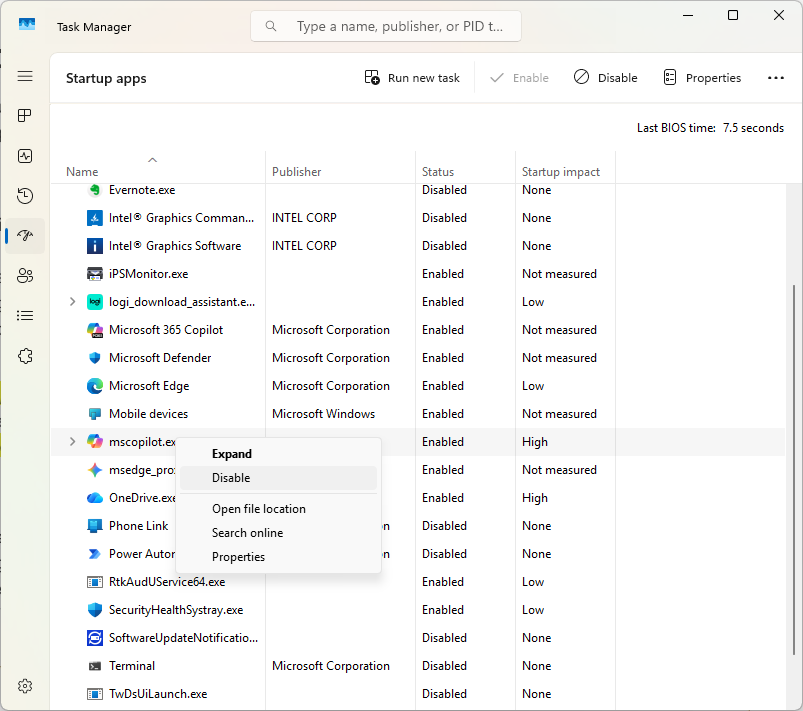
- Audit your list: Microsoft provides an "Impact" rating (Low, Medium, High). Focus your efforts on disabling "High" impact items that you do not require immediately upon logging in.
- Disable, don’t delete: Right-clicking and selecting "Disable" prevents the app from launching at startup without uninstalling the core program. This allows you to maintain functionality when you actually need it.
Furthermore, Windows’ "eye candy"—transparency effects, animations, and shadows—can tax older integrated graphics chips. By navigating to sysdm.cpl (System Properties) and selecting "Adjust for best performance" under the Advanced tab, you can strip away these visual luxuries, reclaiming valuable resources for your active workflow.
2. Glitches and the Troubleshooting Maze
While the BSOD is rarer today, intermittent glitches remain a hallmark of the Windows experience. Whether it is a phantom Bluetooth disconnect or a printer that refuses to acknowledge a document, these errors can derail a workflow instantly.
Navigating the Troubleshooter Suite
Microsoft has integrated an array of automated troubleshooters that, while often overlooked, are surprisingly effective. By navigating to Settings > System > Troubleshoot, users can toggle "Recommended troubleshooter history." Configuring this to "Ask me before running" provides a proactive layer of defense without the operating system making unauthorized changes.
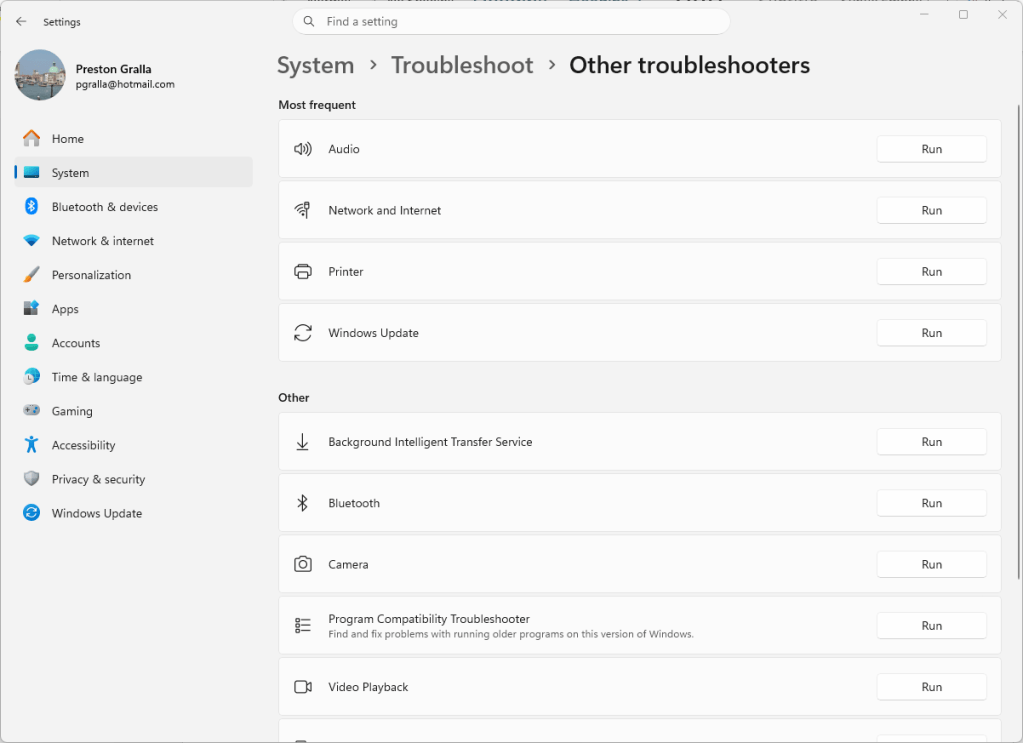
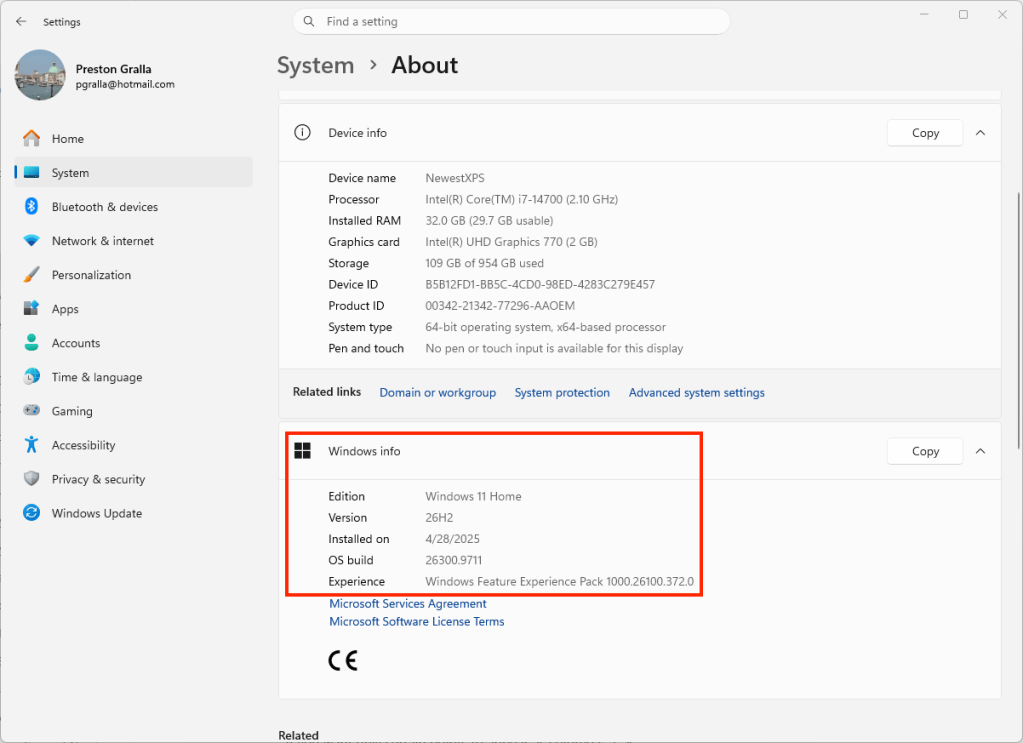
If the automated system fails, the "Other troubleshooters" menu acts as a granular manual for common failure points. When these tools prove insufficient, the modern professional’s secret weapon is the Windows Version Check. By running winver or checking Settings > System > About, you can identify your specific build (e.g., 23H2). When consulting with AI assistants like Microsoft Copilot, providing this specific version number allows for far more accurate, context-aware troubleshooting advice.
3. The Privacy-Invader: Reclaiming Your Data
Windows is inherently built to "phone home." From targeted advertising IDs to granular location tracking, the operating system is designed to build a profile of its user. For the privacy-conscious, these features represent a significant intrusion.
The Anatomy of Data Collection
Microsoft justifies these features as ways to "enhance the Windows experience." However, the implications for personal data privacy are significant. The "Advertising ID," for instance, tracks your behavior across apps to serve personalized ads.
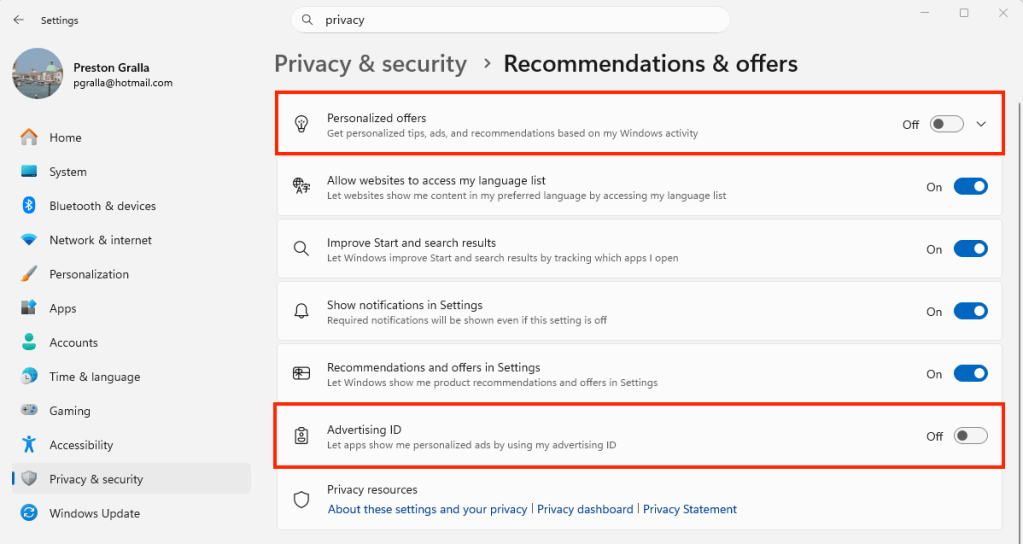
Steps to mitigate this include:
- Advertising ID: Navigate to
Settings > Privacy & security > Recommendations & offersand disable the Advertising ID and "Personalized offers." - Location Tracking: Visit
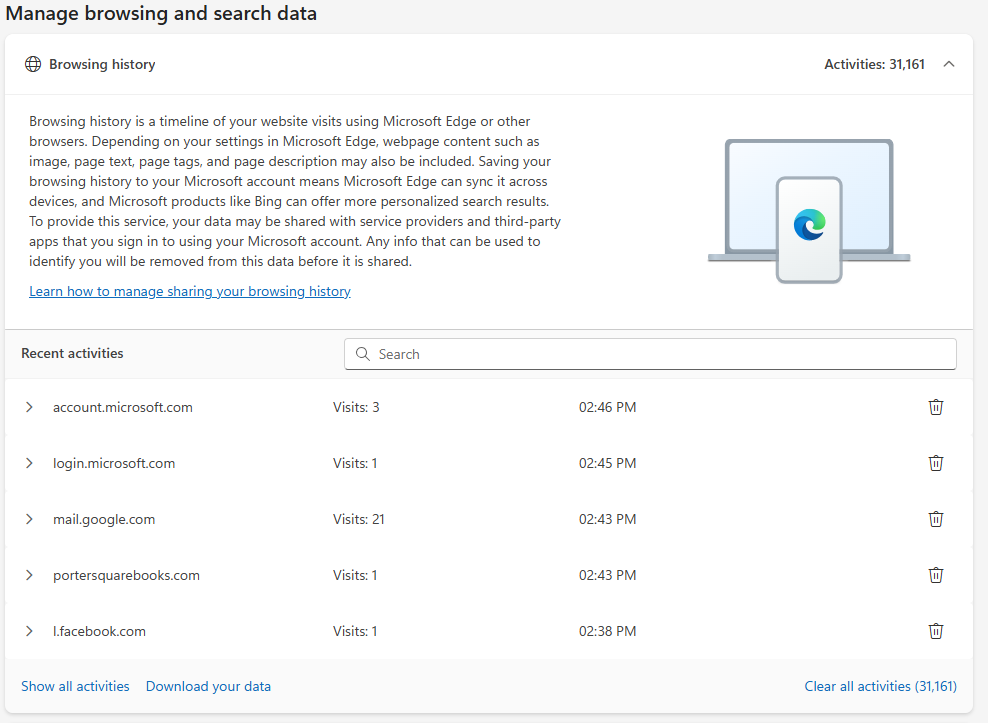
Settings > Privacy & security > Location. You can either perform a blanket disable or toggle access for specific apps. It is highly recommended to audit the "Desktop apps" list here, as these often bypass standard app permission prompts. - The Privacy Dashboard: Microsoft provides a centralized web-based Privacy Dashboard. This is the most powerful tool in your arsenal. It allows you to view and purge your entire history of search queries, voice activity, and browser data stored on Microsoft’s servers.
4. The Default App Battleground
Microsoft’s push to keep users within the Edge and Bing ecosystem has resulted in one of the most frustrating aspects of Windows 11: the difficulty of changing default applications.
Why It’s So Difficult
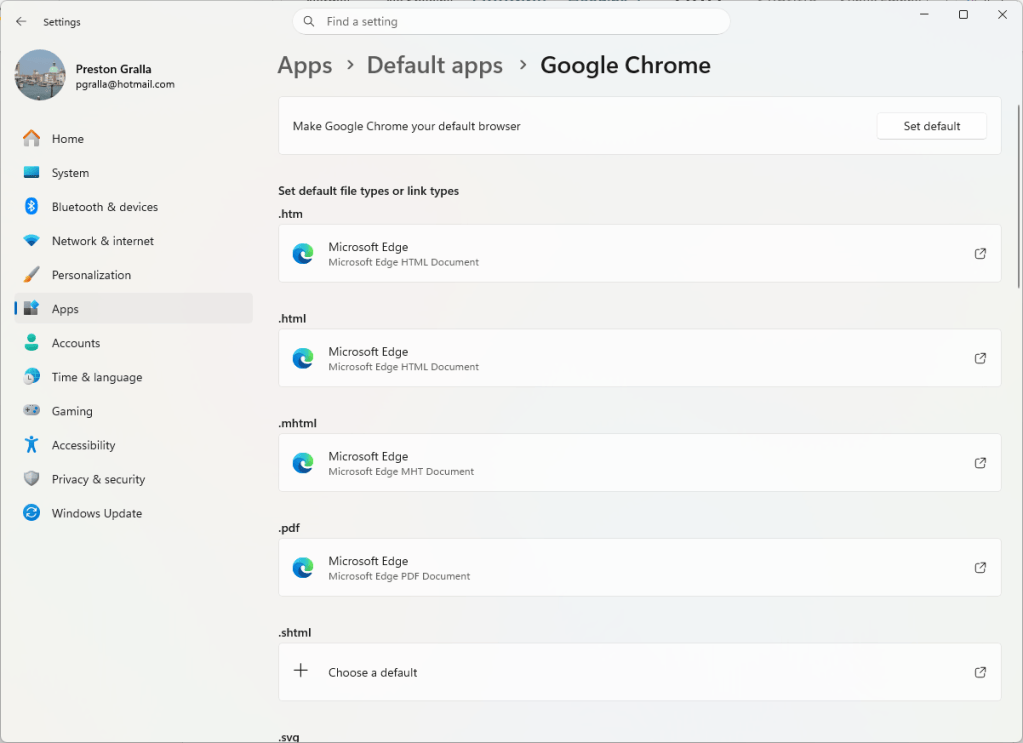
In previous versions of Windows, changing a default browser was a one-click affair. Now, Windows often prompts you to "give Microsoft Edge a try" even after you have selected a new default. Furthermore, simply changing the browser often doesn’t update specific file-type associations like .pdf, .svg, or mailto links.
The Manual Override
To truly take control:
- Go to
Settings > Apps > Default apps. - Search for your preferred browser (e.g., Google Chrome).
- Even after setting it as the primary, you must scroll through the file-type association list to ensure that specific extensions haven’t been "locked" to Edge. This is a tedious, manual process, but it is necessary to ensure your workflow remains consistent across all document types.
5. OneDrive and the "Dueling Recycle Bins"
Perhaps the most confusing element of the modern Windows experience is the integration of OneDrive. While the convenience of cloud-synced files is undeniable, it introduces a dual-layered file management system that frequently leads to data loss confusion.
The Technical Conflict
When you delete a file in a Windows environment, it is sent to the local Windows Recycle Bin. However, if that file resides in a synced OneDrive folder, it may also—or exclusively—be sent to the OneDrive cloud-based Recycle Bin.
The implication is clear: If you delete a file and it isn’t in your desktop bin, you have not necessarily lost it.
To retrieve it, you must access the web-based version of OneDrive. The "dueling bins" issue occurs because the behavior of the delete command changes based on whether the file is "locally available" or "cloud-only." To minimize this headache, users should prioritize deleting files through File Explorer. This is the most reliable method for ensuring that, at the very least, a copy is moved to the local Windows Recycle Bin, providing a clear safety net.
Implications and Final Thoughts
These five issues—performance degradation, system glitches, privacy concerns, default app lock-in, and cloud sync complexity—are not merely minor bugs; they are deliberate design choices. Microsoft operates with the goal of ecosystem retention, which often conflicts with the user’s desire for a streamlined, private, and customizable workstation.
However, the power to reclaim your machine remains in your hands. By treating your PC as a system that requires periodic audit and configuration rather than a "set it and forget it" appliance, you can mitigate these annoyances. A few hours of setup, combined with a consistent policy of privacy management and startup maintenance, can transform Windows from a source of friction into the highly efficient tool it was designed to be.
Ultimately, the goal of any operating system should be to disappear into the background. While Windows isn’t there yet, these fixes are the essential bridge to a more productive digital life.